When AirPlay vanishes: what “disappeared” usually means
You open Control Center expecting the AirPlay icon or a familiar TV or speaker, and it’s just… not there. Most of the time, AirPlay didn’t “break” so much as it stopped being discoverable. That usually means your iPhone/iPad/Mac and the target device aren’t on the same Wi‑Fi network (or one hopped to cellular, a guest network, or a mesh node with isolation). Other common causes are silent blockers: firewalls, or router settings that limit device discovery; a receiver set to require a code; or a privacy/restrictions setting that prevents sharing. Sometimes it’s simpler: the app you’re using doesn’t support AirPlay for that content, or a minor software glitch needs a restart.
First, confirm the basics you might overlook in a hurry
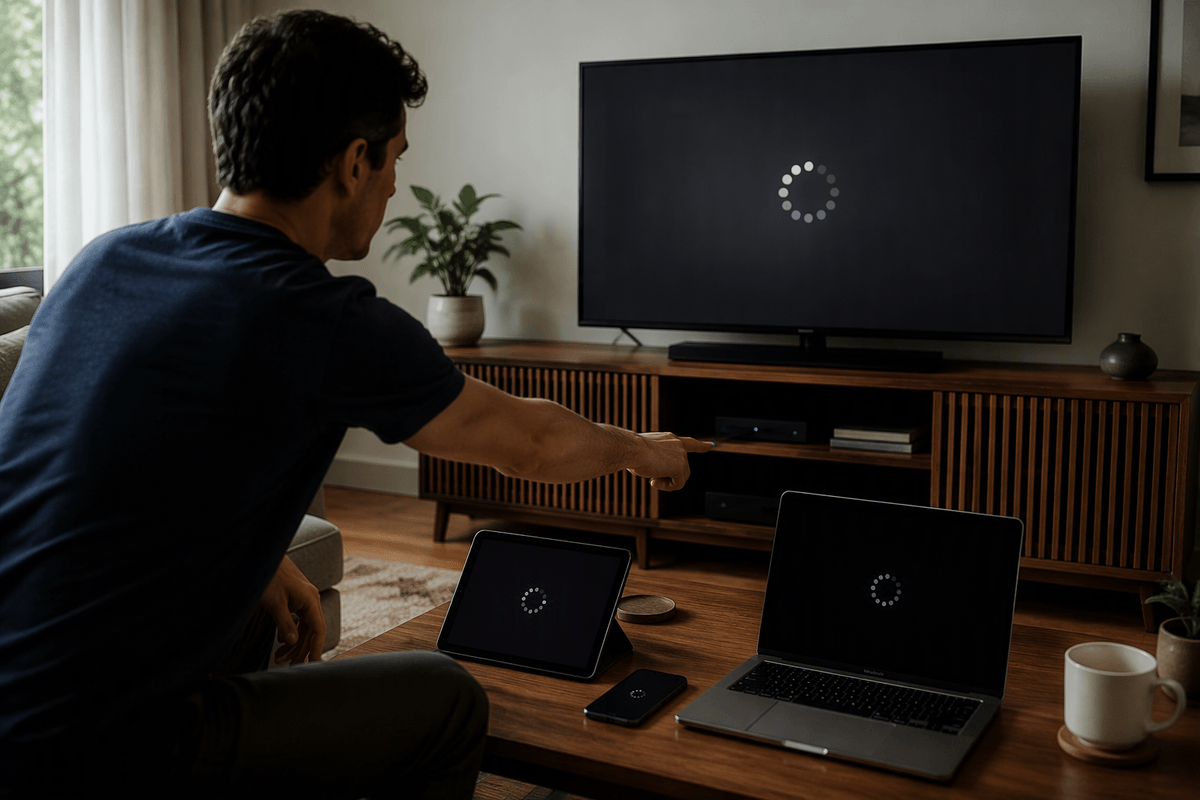
The quickest wins are the boring ones. Make sure the receiving device is actually on, awake, and set to the right input/app (Apple TV home screen, TV’s AirPlay screen, or the speaker not muted). If you’re aiming at a TV, confirm AirPlay is enabled in the TV’s settings—some sets let you toggle it off per input or after an update. On iPhone/iPad, open Control Center and try both places: the AirPlay button in the media tile and Screen Mirroring; they can behave differently depending on what you’re streaming. Turn off Low Power Mode—either can change how discovery works. Finally, restart the receiver first, then your iPhone/iPad/Mac; it costs a couple minutes, but clears a lot of “vanished” lists.
Same Wi‑Fi matters: network checks that restore discovery
You can be “on Wi‑Fi” and still not be on the same network. Start by checking the network name on both ends: on iPhone/iPad go to Settings > Wi‑Fi, and on Apple TV go to Settings > Network (on many TVs, it’s under Network/Internet). If one device is on a guest network, “Wi‑Fi Assist” has pushed the phone to cellular, or your mesh system created a second SSID (2.4 GHz vs 5 GHz with different names), AirPlay discovery often disappears. Move closer to the router and reconnect both devices to the exact same network name.
If you still don’t see targets, toggle Wi‑Fi off and on (and toggle Airplane Mode on for 10 seconds, then off). Then check for isolation: guest networks and some mesh “client isolation” settings prevent devices from seeing each other even though internet works. Also try pausing any virtual internet on the router or device, since it can force traffic onto a path AirPlay can’t use. These steps are quick, but they can cost you a few minutes of reconnecting saved networks afterward.
Device settings that quietly block AirPlay
You’ll also see AirPlay “disappear” when a device setting quietly stops discovery. On iPhone/iPad, check Settings > Bluetooth and make sure Bluetooth is on; AirPlay can still work without it in some setups, but leaving it off can make finding devices less reliable. If you’re using Personal Hotspot, turn it off—some connections end up isolated in ways that hide receivers. On Apple TV, look at Settings > AirPlay and HomeKit: AirPlay should be On, and “Allow Access” should match what you expect (for troubleshooting, “Everyone” is the fastest test, then tighten it back down). If “Require Password” is enabled, you may need the code prompt to appear before it feels “available.”
On iPhone/iPad, check Screen Time > Content & Privacy Restrictions; restrictions can block AirPlay, screen recording, or device discovery without being obvious. On a Mac, go to System Settings > Privacy & Security and temporarily turn off any third‑party firewall/security tool that might be filtering local network traffic. These are quick checks, but they can have real trade-offs, so switch settings back after you confirm AirPlay works.
Router and firewall gotchas: when the network blocks AirPlay
A common “everything looks fine” failure is the router allowing internet but blocking device-to-device discovery. If you can browse the web yet AirPlay targets never appear, log into your router app and look for settings like AP/client isolation, “Wireless Isolation,” “Block LAN to WLAN,” or “Guest network access.” Any of those can prevent your iPhone from seeing an Apple TV on the same Wi‑Fi name. If your system has multiple nodes, also check that it isn’t steering devices onto separate VLANs or “profiles.” Some routers label this as IoT network, Home network, and Guest.
Firewalls can cause the same symptoms. If you’ve enabled a router “security” feature, parental controls, or an IDS/IPS mode, try pausing it briefly and test AirPlay again. On a Mac, a third‑party security suite can filter local traffic even when macOS seems normal. Corporate and school networks frequently block multicast discovery entirely; in that case, AirPlay may only work on a personal hotspot or home network. The cost here is time: changing router settings can reboot your network and disconnect everyone for a few minutes.
Software fixes that work when nothing else does
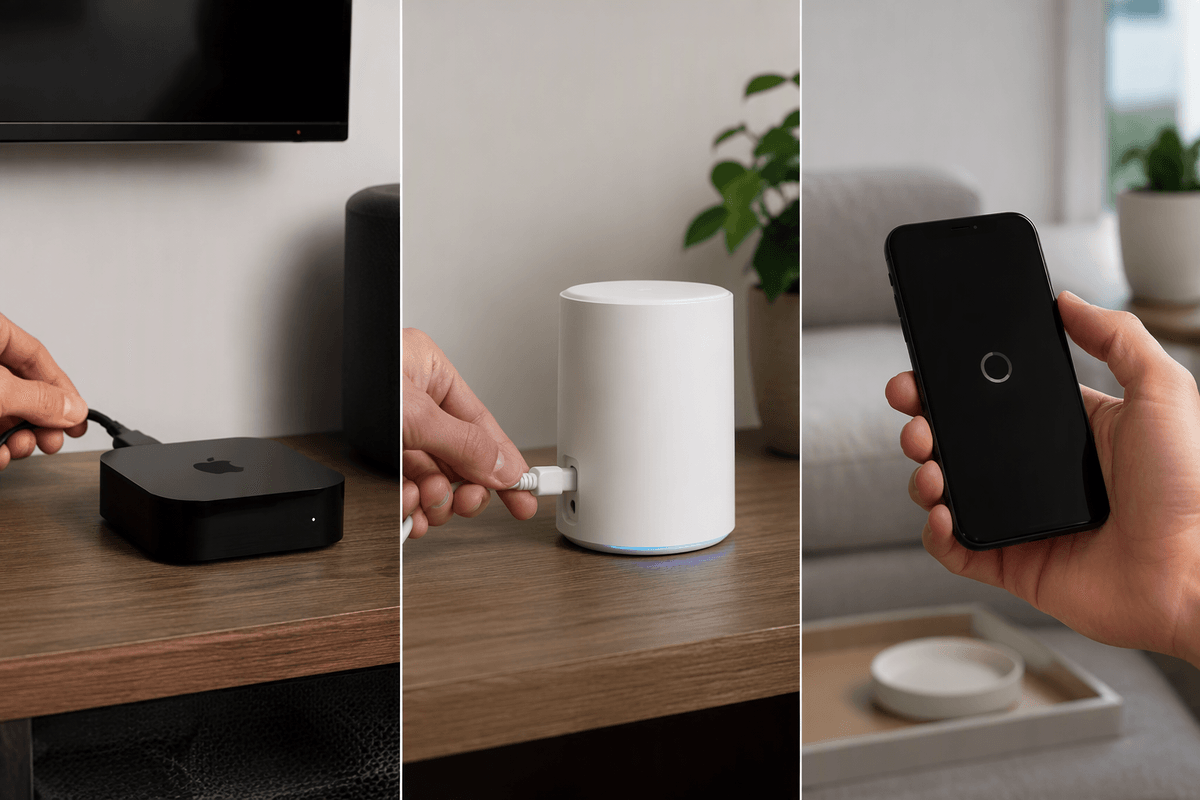
You’ve checked settings and the network still looks right, but the list won’t populate—at that point, assume a temporary software stall. Force-close the app you’re trying to stream from and try a second app (Photos or Music is a good test) to separate “AirPlay is broken” from “this app won’t hand off this content.” Then reboot in a strict order: power-cycle the receiver (Apple TV/TV/speaker) first, wait for it to fully come back, reboot your router/mesh next, and restart your iPhone/iPad/Mac last. That order matters because the receiver and router are what advertise and route discovery.
If it’s still missing, install updates on both ends (iOS/iPadOS/macOS and tvOS/TV firmware). Updates can also quietly flip AirPlay permissions, so re-check “Allow Access” afterward. On iPhone/iPad, go to Settings > General > Transfer or Reset > Reset > Reset Network Settings; you’ll lose saved Wi‑Fi passwords, but it often clears stubborn discovery issues.
If it’s still missing: pinpoint the remaining culprit
If the AirPlay list is still empty, isolate the failure with one clean test: put both devices on the same simple network (home Wi‑Fi, no guest/IoT SSID), and try AirPlay from Photos or Music. If that works, the culprit is usually app-specific (DRM/streaming restrictions) or content-specific, not your network. If it still doesn’t work, try a different receiver (another TV, HomePod, or even a friend’s Apple TV) to learn whether the issue follows your iPhone/iPad/Mac or the target device. When it only fails on one TV/speaker, focus on that device’s AirPlay permissions and firmware.