Why “logging out” on Roku works differently
You’ll notice Roku doesn’t offer a universal “log out” like a phone or web browser. That’s because a Roku device is designed to be “linked” to one Roku account at the system level, and everything else (channels, purchases, many subscriptions, and some saved settings) hangs off that link. So the action that behaves like logging out is unlinking the device from the Roku account, not tapping a sign-out button.
The trade-off is that unlinking can remove channels and reset parts of your setup, which takes time to rebuild. It also won’t automatically sign you out of every individual streaming app, since many apps keep their own profile or session.
Check what you’re trying to fix before unlinking
Most people reach for unlinking because something feels “stuck,” but it helps to name the problem first. If you’re selling or gifting the Roku, unlinking is the right move because it breaks the device-to-account tie and prevents future purchases from hitting the wrong payment method.
If you’re only trying to switch profiles inside Netflix, Hulu, Max, or Disney+, unlinking the Roku account is usually overkill—those services are separate logins and often just need a sign-out inside the app. If the issue is missing channels, billing confusion, or a device that’s tied to an old household account, unlinking makes sense, but plan for the practical cost: you may need to reinstall channels, re-enter Wi‑Fi, and sign back into multiple apps afterward.
Unlink your Roku from the device settings (fastest method)
You’ll usually get the cleanest break by unlinking directly on the Roku. On your Roku home screen, go to Settings > System > Advanced system settings > Factory reset. If you see an option for Factory reset everything, pause—this is the “wipe the box” route, not a simple sign-out. Many models don’t offer a separate “unlink only” button in the on-TV menus, so the practical fastest method is often the online unlink (covered next) unless you truly want to reset.
If you do choose the on-device reset to break the account link, expect the device to restart like it’s new: Wi‑Fi setup, a new linking code, and a fresh channel lineup. Anything billed through Roku can stop on that device until it’s linked again, but third-party subscriptions you pay for directly (like Netflix billed by Netflix) usually continue—you’ll just need to sign in again.
Unlink from your Roku account online when you can’t access the TV
If you can’t get to the Roku menus—lost remote, broken screen, or the device is already packed up—the online route is the most practical. On a phone or computer, sign in to the Roku account that currently “owns” the device, open your account page, and find the list of linked devices (often labeled “My linked devices”). Choose the Roku you want, then remove/unlink it. Within a few minutes, that Roku will stop syncing channels and Roku-billed features tied to that account.
Two real-world constraints: the Roku usually needs to be online to fully “receive” the change, and unlinking online doesn’t always erase what’s already on the box. If the TV is still accessible later, plan on a factory reset before selling or gifting so personal app logins, Wi‑Fi details, and cached data aren’t left behind.
Factory reset vs unlinking: when you should wipe everything
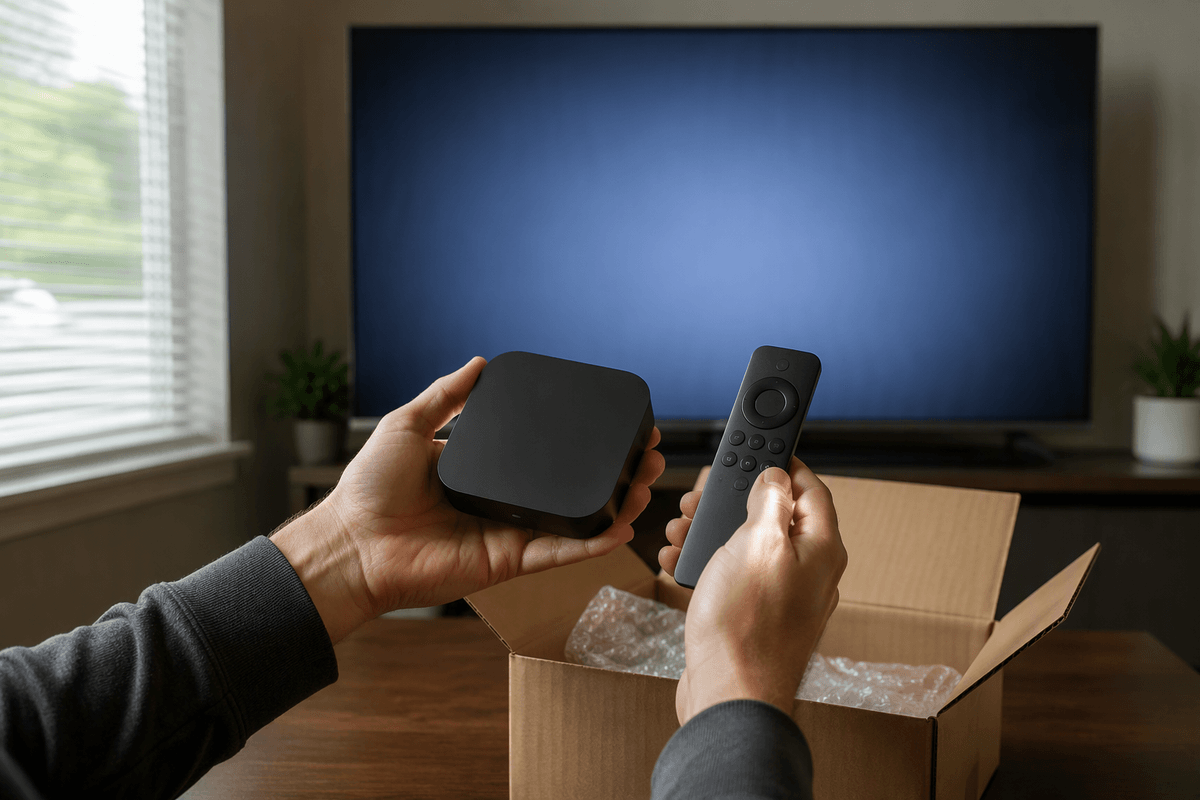
You’ll feel the difference between unlinking and a factory reset right away. Unlinking mainly cuts the device’s relationship to a Roku account so it stops syncing channels and Roku-billed features with that account. A factory reset is a full “back to new” wipe: it clears Wi‑Fi details, most settings, and app data, and it forces a new linking code on restart.
Wipe everything when the Roku is leaving your control (selling, gifting, moving it to a different household) or when you suspect leftover logins are causing weird behavior you can’t untangle app by app. Unlinking alone can still leave a usable home screen with apps that may auto-open into someone’s profile, which is the last thing you want on a hand-me-down TV.
The cost is time and friction: you’ll rejoin Wi‑Fi, reinstall channels, and sign back into services. If you’re just changing which Roku account manages the device, unlinking online is usually enough until privacy is the priority.
Reconnect the Roku to a different account without surprises
You’ll usually notice the “new account” moment when the Roku shows a linking screen and gives you a code. That’s the point to slow down and make sure you’re signing into the right Roku account on your phone or computer—especially in a household where someone else set it up years ago. Use a private/incognito browser window if you’re not 100% sure which account your device is already logged into, because the linking page may auto-sign you into the last-used Roku account without asking.
After linking, expect your channel lineup to change to match the new account, and expect any Roku-billed subscriptions to follow the account—not the device. If you were sharing one Roku account before, moving to a different account can mean losing access to channels you didn’t personally add, and it can break “one-click” playback until you sign back into each streaming app again. Plan for 10–30 minutes of re-logins if you use several services.
Still seeing the old profile? Sign out of individual apps
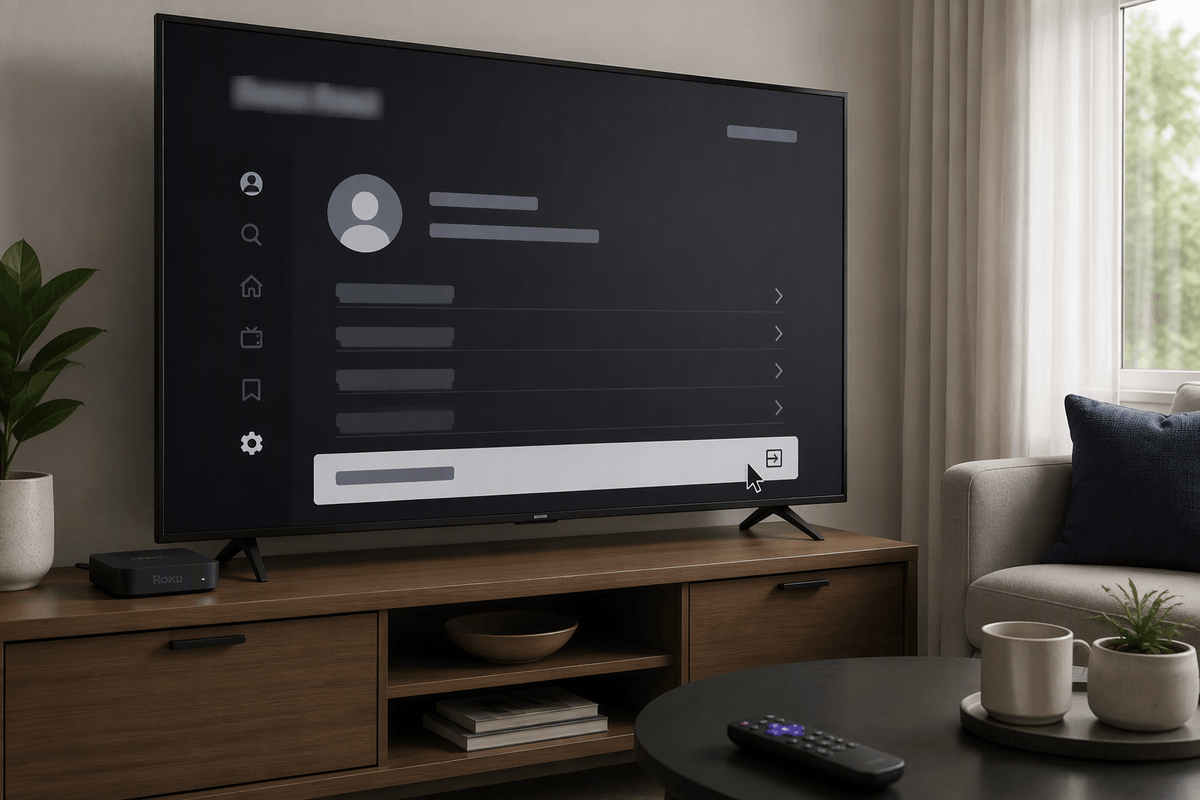
You can unlink or even factory reset and still open an app that drops you straight into someone else’s profile. That’s not Roku “remembering” the old account—it’s the streaming app keeping its own login. The fix is inside the app itself: open the channel, go to Settings, Account, or Get Help, then look for Sign out, Log out, or Deactivate. Some apps hide it under a gear icon, a profile picker, or a “Switch user” screen.
If you’re stuck, remove the channel, restart the Roku (Settings > System > Power > System restart), then add the channel again and sign in fresh. The practical downside is time: you’ll need the correct email/password (and sometimes a phone for activation codes) for each service.
A quick checklist for leaving no account behind
Before you hand the Roku off—or before you blame the wrong account—run this quick sweep: confirm which Roku account is linked (Settings > System > About), then unlink it online if you can’t reach the TV. If the device is leaving your home, do a factory reset to clear Wi‑Fi and app data. After it restarts, don’t re-link it “just to test” unless you’re ready to set it back up. Finally, open the big apps (Netflix, Hulu, Disney+, Max, Prime Video) and sign out inside each one, or remove/reinstall if the sign-out is buried. Keep a phone handy for activation codes.