When a “group email” is the right tool (and when it isn’t)
You’ve probably typed the same 8–30 addresses more times than you want to admit: a class project team, a client roster, a kids’ activity list. A “group email” in Gmail is ideal when you mainly need one-way updates—agenda changes, reminders, files, or a quick check-in—and you don’t need people to talk to each other.
It’s the wrong tool when replies should go to everyone, when membership changes often, or when you need a public-facing address (like “volunteers@…”). That’s where Google Groups behaves more like a real mailing list. Even for simple sends, expect upkeep: lists go stale, and a single To/CC mistake can expose everyone’s addresses.
Create a contact group in Google Contacts (the modern way)
The fastest “modern” way to build a reusable group in Gmail is to use Google Contacts labels (Google quietly moved away from calling them groups). Open Google Contacts, click Create label, and name it something specific like “Soccer Parents (Fall)” or “Client Updates—Q4.” Then add people: either open a contact and apply the label, or select multiple contacts from the list and use the label icon to tag them in one batch.
A practical constraint: labels only work well if your contacts are actually saved. If you’re relying on random autocomplete suggestions from past emails, take five minutes to turn key recipients into real contacts, or the label won’t stay complete. Also, don’t expect it to manage subscriptions or bounce handling; it’s just your personal list. That’s the key difference from Google Groups, which is built to manage membership and replies as an actual mailing list.
Send to your group safely: BCC, personalization, and mistakes to avoid
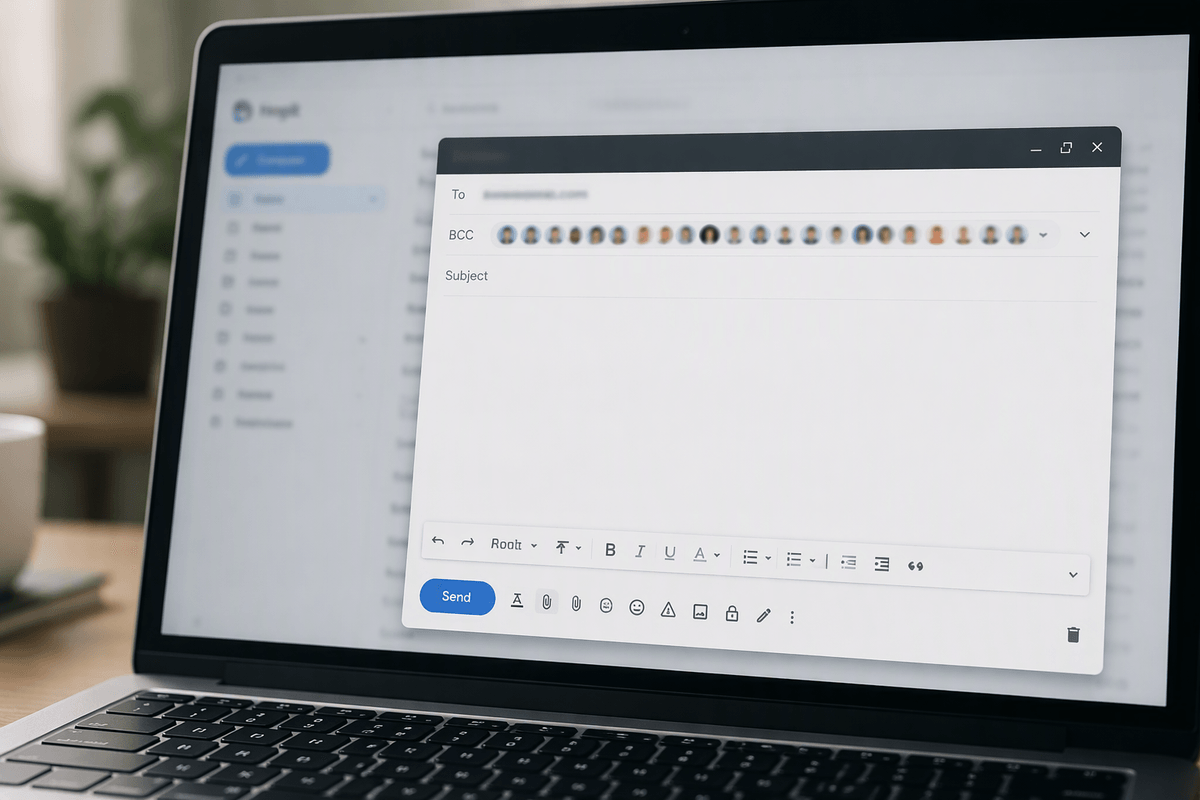
The moment you email a contact label, your main risk is accidental oversharing. If recipients don’t already know each other (clients, parents, mixed volunteers), put your own address in the To field and add the label in BCC. That keeps addresses private and reduces reply-all pileups. If you actually want visible recipients (a small internal team), use To, but decide that intentionally.
Personalization is where Gmail can trip you up. A label send is one message, so you can’t reliably use a different greeting for each person unless you send individually (or switch to a mail-merge style tool). The safe middle ground is a neutral opener (“Hi everyone,”) and a subject line that clearly signals the context (“Schedule change: Tue practice moved to 6pm”). Before you send, click the recipients bubble to review the expanded list, remove anyone who shouldn’t see it, and sanity-check stale addresses—old roommates and former vendors tend to linger.
One last guardrail: turn on Undo Send and set it to the maximum delay. It won’t fix a bad list, but it can save you from a fast misfire.
Alternative: Google Groups for real mailing lists and replies
You feel the need for Google Groups the first time you think, “I want one address for everyone, and I want replies to go back to the whole group.” A Contacts label is just your personal shortcut for addressing an email. A Google Group is a shared distribution list with its own email address (like [email protected]), a member list, and posting rules—so it’s better when membership changes, when you want people to join/leave, or when the conversation should stay in one thread.
The trade-off is setup and governance. Someone has to own the group, approve members (or manage who can request access), and decide whether outsiders can post. You’ll also spend time on practical housekeeping: moderating off-topic replies, dealing with spam if posting is too open, and fixing deliverability issues when messages bounce or land in promotions. For small teams and families, a “restricted” group (members-only posting) usually prevents the worst reply-all chaos while still giving you that single, reusable address.
Hidden Gmail features that make group emails faster
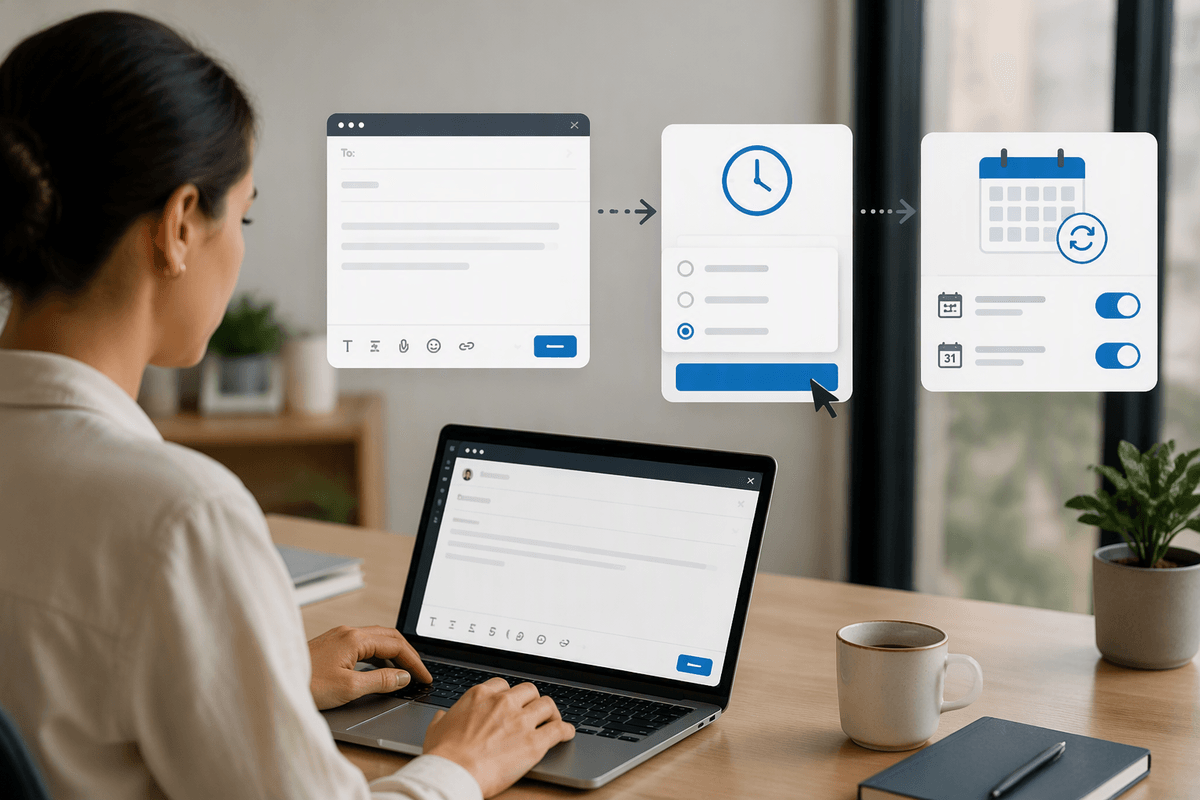
You can shave minutes off every group send by leaning on a few Gmail features that don’t look “group-related” at first. Templates (Settings > Advanced > Templates) are the big one: save your standard update format—subject style, bullet layout, links, sign-off—then insert it in two clicks instead of rebuilding it. Pair that with Schedule send for messages that always go out at predictable times (weekly reminders, monthly invoices), so you write once when you have focus and deliver when it’s most likely to be seen.
When you’re emailing a label regularly, search operators turn “Where was that thread?” into a fast lookup. Use queries like to:me plus a keyword for replies, subject:(newsletter) to find prior sends, or has:attachment to reuse the last PDF you sent the group. One realistic constraint: templates and schedule send speed up composition, but they don’t prevent a stale recipient list—so build a quick habit of clicking the recipient bubble and scanning the expanded list before you hit send.
Hidden features for staying organized after you hit send
The inbox mess usually starts after a group send: replies trickle in, questions branch off, and you waste time reopening the same thread. Filters can do the sorting for you. Create a filter that matches your usual subject tag (for example, “Soccer Parents”) or the label name you use in BCC, then auto-apply a Gmail label like “Group Updates,” optionally skip the inbox, and keep the whole cycle in one place. If you’re worried about missing something urgent, leave it in the inbox but add a label and a star, so it’s visually obvious.
Conversation view is another quiet organizer. When it’s on, your sent message and most replies stay threaded, which makes it easier to see who responded and what’s still unanswered. For chaotic sends, add a simple rule for yourself: archive the thread once you’ve acted, then rely on search to resurface it later (try label:group-updates is:unread or from:[email protected]). The practical cost is upfront time: filters take 5–10 minutes to get right, and one sloppy match can misfile unrelated mail.
A simple setup checklist you can reuse every time
A reusable group-email routine is mostly a short pre-flight check. First, decide the tool: Contacts label for one-way updates, Google Group if you need a shared address and reply-to-all behavior. Confirm your recipients are real saved contacts, then open the label and remove anyone outdated. In Gmail, put yourself in To, the label in BCC (unless everyone should see the list), and click the recipient bubble to review the expanded addresses. Insert your Template, keep the greeting neutral, and consider Schedule send. Finally, verify Undo Send is maxed, and ensure your subject tag will match your filter so replies land where you expect.