When OneDrive claims it’s full, what that really means
You see the banner: “Your OneDrive is full,” and syncing pauses or files refuse to upload. That message sounds simple, but it’s usually a shorthand for “something hit a limit.” Sometimes it’s your OneDrive cloud quota. Other times it’s a related bucket that still blocks OneDrive, like the OneDrive recycle bin, Outlook mailbox/attachments on the same Microsoft account, or a backup feature quietly pushing large folders.
It can also be a misunderstanding caused by multiple accounts or plans (work vs personal), or by mixing up local disk space with cloud storage. The practical downside is time: if you delete the wrong things or turn off sync in a hurry, you can create duplicates, break folder links, or lose the only copy of a file. The goal is to identify the exact limit before you “clean up.”
Confirm you’re checking the right account and storage plan
A surprisingly common cause is that you’re looking at the wrong OneDrive. Many people have at least two Microsoft identities: a personal Microsoft account (often tied to an email like Outlook.com) and a work or school account (managed by an organization). Each has its own OneDrive, its own quota, and its own rules. On a Windows PC, the OneDrive cloud icon can be signed into both at once, and the “storage full” warning might belong to the one you aren’t actively using.
Open the OneDrive settings from the taskbar icon and check the account name(s) listed. Then confirm the storage plan on that same account: Microsoft 365 Personal/Family, a standalone OneDrive plan, or a work/school license. Also watch for expired trials or lapsed renewals—your quota can drop overnight while your files stay in place, and syncing is what gets blocked.
Check the real usage breakdown, not just the warning banner
The banner rarely tells you what actually filled up. Go to the storage details for the same account you just confirmed and look for a category breakdown, not a single total. In OneDrive on the web, open Settings, then Storage to see how much is in Files, Photos/Camera Uploads, and especially the Recycle bin. A full recycle bin can block syncing even after you “deleted” a bunch of items, because they still count until you empty it.
Also check whether you’re being charged for things you don’t think of as “OneDrive files.” If you have PC folder backup turned on (Desktop, Documents, Pictures), those folders are part of your OneDrive usage. Shared folders can confuse people too: you might see them on your PC, but the space is usually counted against the owner, not you. The catch is time—usage numbers don’t always refresh instantly, so wait a bit after big deletions before assuming nothing changed.
Local disk space vs OneDrive cloud space: easy to mix up
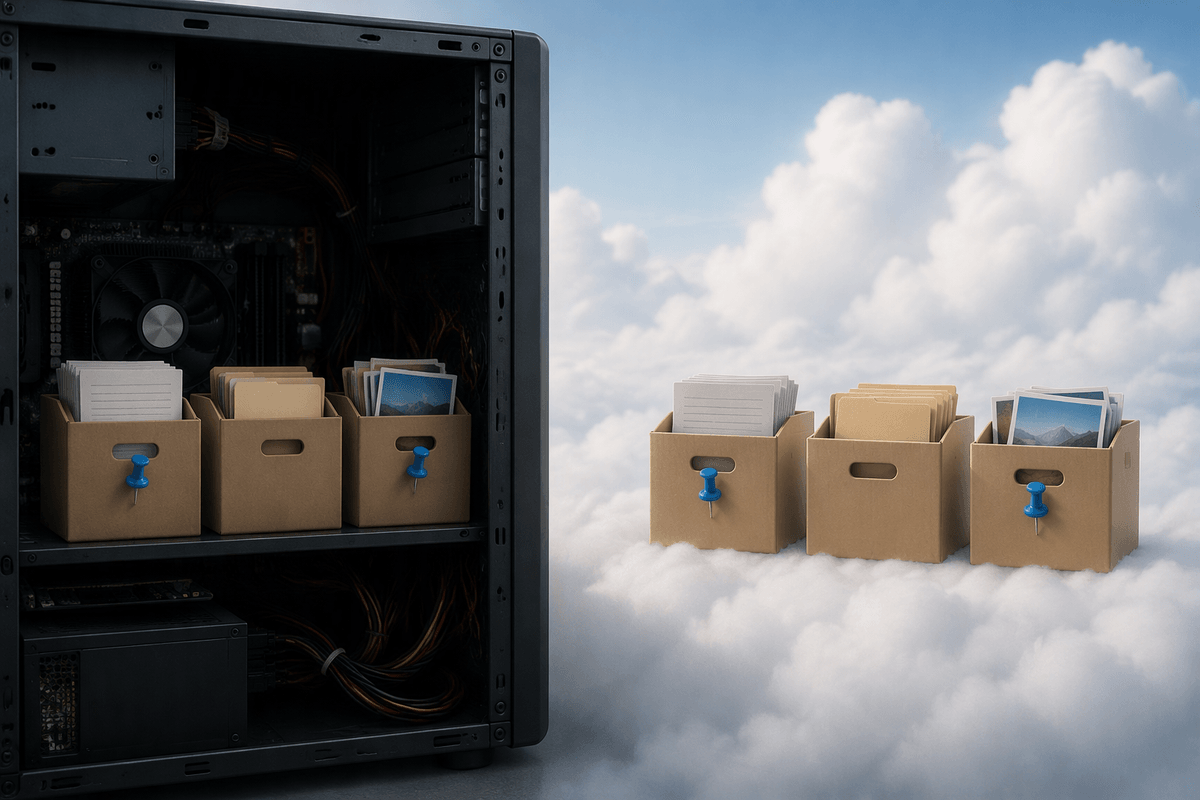
The other easy mix-up is “my PC has plenty of space” versus “my OneDrive has space.” OneDrive needs both. Cloud quota limits what can upload to Microsoft’s servers, while local disk space limits what can download, index, and keep available offline. If your C: drive is nearly full, OneDrive can pause syncing or get stuck “processing changes,” even when your OneDrive storage page shows plenty of room.
This gets worse with “Always keep on this device,” large photo libraries, or PC folder backup: your Desktop/Documents/Pictures may be trying to live in two places at once. Check Windows Settings > System > Storage for the drive OneDrive is using, then in OneDrive choose “Free up space” for folders you don’t need offline. The trade-off is slower access when you’re not connected.
The usual space hogs: backups, attachments, and hidden piles
Most “sudden” storage problems come from a few predictable piles that grow in the background. PC folder backup (Desktop, Documents, Pictures) can balloon fast, especially if those folders contain game captures, downloads, installers, or project folders you didn’t realize were being protected. Camera Uploads is another classic: a phone set to upload full-resolution photos and videos can chew through a small quota in weeks, and Live Photos/HEIC conversions or 4K clips are much larger than they look in a thumbnail grid.
Then there’s the stuff that doesn’t feel like “files” at all. The OneDrive recycle bin still counts until it’s emptied. Outlook can also be part of the same overall storage pool for a personal Microsoft account, so a mailbox full of big attachments can push you over even if your OneDrive folder looks tidy. The practical constraint is time and patience: usage totals can lag after big cleanups, and deleting from the wrong place (like a backed-up Desktop) can remove it everywhere once sync catches up.
Free up space safely without breaking sync or losing files
A safe cleanup starts with one rule: delete from the cloud view first, and watch what it does on your PC before you keep going. Use OneDrive on the web to sort by Size, move anything you’re unsure about into a temporary “Review” folder, then delete obvious junk (duplicate videos, old installers) and immediately empty the OneDrive recycle bin. If PC folder backup is on, treat Desktop/Documents/Pictures like shared plumbing: deleting there deletes everywhere. For risky items, copy them out to a USB drive or another cloud provider before you remove them.
When the goal is space without losing access, prefer “Free up space” (Files On-Demand) over deletion. Right-click big folders you rarely need offline and choose “Free up space,” which keeps them in OneDrive but removes local copies. Expect two practical costs: re-downloading can be slow on weak Wi‑Fi, and very large deletions may take minutes to reflect in the storage total.
If you still have space but it says full: fix the mismatch
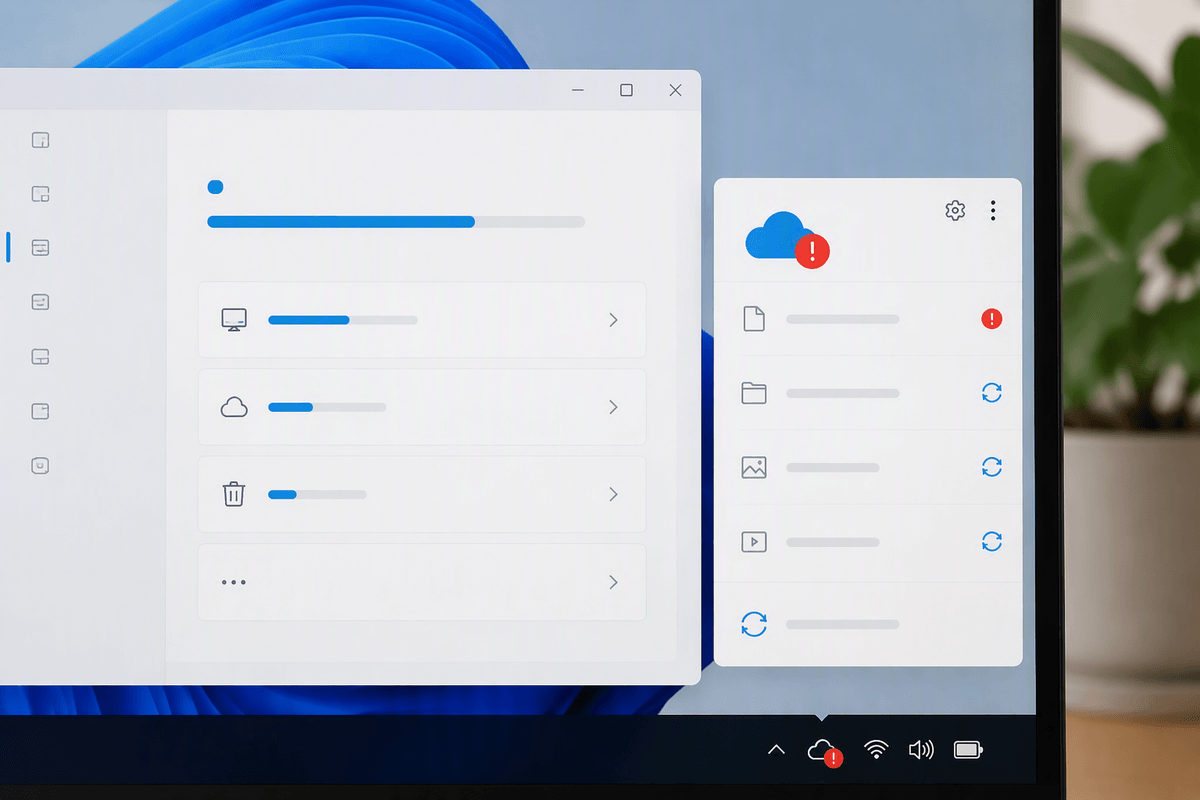
You’ve cleared files, emptied the recycle bin, and the storage page still shows room, yet OneDrive keeps insisting it’s full or won’t sync. The first fix is to force every place that caches the “quota state” to refresh. Pause syncing for a minute, then resume. Quit OneDrive from the taskbar icon and reopen it. If you use the web, sign out and back in. After a large cleanup, give it time too—some accounts take a while to recalculate totals, and sync can stay blocked until that catches up.
If it still doesn’t match, look for a different limiter than “files size.” On personal accounts, Microsoft storage can be shared with Outlook, so a mailbox over its limit can block uploads. Also check whether a second OneDrive account on the PC is the one that’s actually full. When all numbers look right but the client won’t budge, reset the OneDrive app (you’ll re-sync, but files stay in the cloud) and verify the sync folder hasn’t been moved to a nearly-full drive.
Decide between upgrading storage and preventing future surprises
Once syncing is moving again, the decision is whether you’re dealing with a one-time spike or a steady trend. If your storage is consistently within a few gigabytes of the limit (especially with Camera Uploads or PC folder backup on), upgrading is often cheaper than repeatedly triaging files, but it only helps if you’re on the correct account and the plan is active. If it was a spike, prevent repeats by excluding non-essential folders from backup, turning off video uploads, and setting large “archive” folders to online-only. Also calendar a monthly check of OneDrive storage, recycle bin, and mailbox size.