Why Google Backup Codes still matter with 2‑Step Verification
You usually notice backup codes only when something goes wrong: your phone is lost, smashed, out of battery, or you can’t receive texts while traveling. Even if you use an authenticator app or a security key, there are real-world moments when your primary 2‑Step Verification method isn’t available. A Google backup code is the simplest “break glass” option because it doesn’t depend on your device, your phone number, or a working internet connection.
The catch is you have to set them up before you need them, and you have to store them somewhere you can still reach when you’re locked out. That small bit of preparation can turn a stressful account recovery into a two-minute sign-in.
What backup codes are—and what they aren’t

Think of Google backup codes as a small stack of one-time “spare keys” for your account. When you generate them, Google gives you a set of codes (each works once) that can replace your usual second step—like a prompt on your phone, an authenticator code, or an SMS—if you can’t access those methods.
They aren’t a password reset tool, and they don’t prove you own your phone number. Anyone who gets a backup code can use it, so treat them like cash: don’t paste them into notes in the same Google account they protect, and don’t leave them sitting unencrypted in a downloads folder. Also, they’re not a permanent solution. You’re meant to use one to get back in, then restore stronger sign-in methods and keep the remaining codes safe.
The moments you’ll actually need a backup code
You’ll reach for a backup code when you can type your password, but the second step is blocked. The most common moment is losing your phone or wiping it during an upgrade, then realizing your authenticator app didn’t transfer. Another is a broken screen or dead battery when you’re away from a charger and need to get into Gmail fast. Travel creates its own failures: no service for SMS, a new SIM, roaming restrictions, or your “Google prompts” not arriving because the device is offline.
Backup codes also help when you’re temporarily locked out of your normal second step—your phone number changed, your security key is at home, or you’re signing in on a new device and can’t open the authenticator app. The limitation is practical: if the only copy of your codes is on the same lost phone or inside the same Google Drive you’re trying to access, they won’t save you.
How to generate, view, download, and regenerate codes
You’ll generate backup codes from your Google Account security settings, not from Gmail or YouTube. On any signed-in device, go to your Google Account, open Security, then find 2‑Step Verification. After you confirm your password, look for Backup codes. Google will show you a set of one-time codes—this is the moment to save them properly, because you may not get another clean chance when you’re under pressure.
Use the on-screen options to download or print the codes, or carefully copy them into a secure place (a password manager vault or an offline printout). If you suspect the codes were seen, accidentally stored in an unsafe spot, or you simply can’t locate them anymore, choose Get new codes (regenerate). Regenerating invalidates the old set, which is good for security but can bite you if your only “safe copy” was the one you just replaced.
Storing backup codes safely without losing them
Most people make the same mistake: they save backup codes somewhere convenient, like a note in the same Google account, a screenshot on the same phone, or an email to themselves. That works right up until the day you’re locked out of that account or that device disappears. A better default is two copies in two different forms: one offline (printed and stored like you’d store a passport) and one encrypted (a reputable password manager vault that isn’t tied to Google sign-in).
Keep the offline copy somewhere you can realistically reach when you’re not at home—many people use a wallet card in a sealed sleeve, a locked desk drawer at work, or a home safe. The trade-off is real: printing and storing paper has physical risks (theft, fire, water) and password managers require you to remember and maintain your master password. Whatever you choose, label it clearly (“Google backup codes”), avoid cloud folders you can’t access while locked out, and replace old copies immediately when you regenerate codes.
Using a backup code during sign-in, step by step
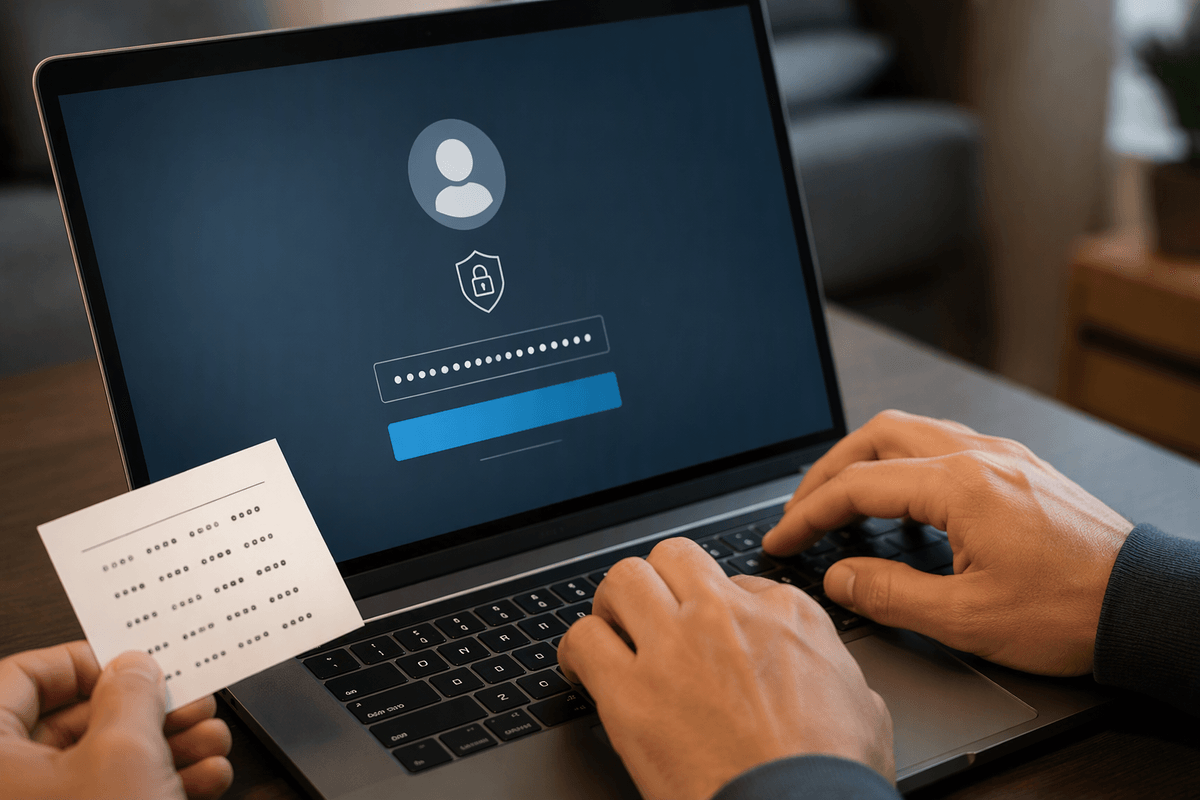
You’re at the sign-in screen, you enter your Google password, and then you hit the 2‑Step Verification prompt you can’t complete. Look for an option like Try another way (sometimes Choose another option). Keep selecting alternatives until you see Backup codes, then choose it.
Type one unused backup code exactly as shown (they’re one-time, so don’t “test” a few). If it works, you’ll be signed in immediately, usually without needing your phone at all. The practical friction is that you must have the code in front of you—paper copy, password manager, or wherever you stored it—so this is not the moment to go hunting through the same locked Google Drive or the same lost phone. Once you’re in, finish what you need to do, then go straight to your Security settings to repair your normal 2‑Step method.
After you use one: checking remaining codes and staying protected
After you get in with a backup code, assume that code is now “spent” and treat the rest of the list like active keys. Go back to your Google Account Security settings, open 2‑Step Verification, and check Backup codes to see how many are left. If you used the only copy you had printed, update it now—people often forget this step and later discover their paper list is out of date.
Then fix the reason you needed the code in the first place: add your new phone, re-enable your authenticator app, or confirm you still have at least one working sign-in method besides SMS. If there’s any chance your codes were exposed (saved in an unencrypted file, left on a shared printer, stored on a lost device), regenerate immediately and destroy old copies. The small cost is the housekeeping: regenerating invalidates every older printout, so you have to replace them everywhere you stored them.
If you can’t find your codes: your next best recovery options
You enter your password, you’re asked for the second step, and your backup codes are nowhere to be found. First, try other enrolled methods: a security key, Google prompts on any still-signed-in device (tablet, old phone), an authenticator app on another device, or SMS/voice if that number still works. If you’re signed in anywhere, go straight to Security and generate a fresh set of backup codes and print/save them correctly.
If you have no working second step at all, you’re in account recovery territory. Use Google’s recovery flow, and expect it to take time—sometimes days—because it relies on signals like recovery email/phone, prior devices, and familiar locations. This is exactly why keeping one offline copy of codes matters.