Two phone platforms, one dashboard goal
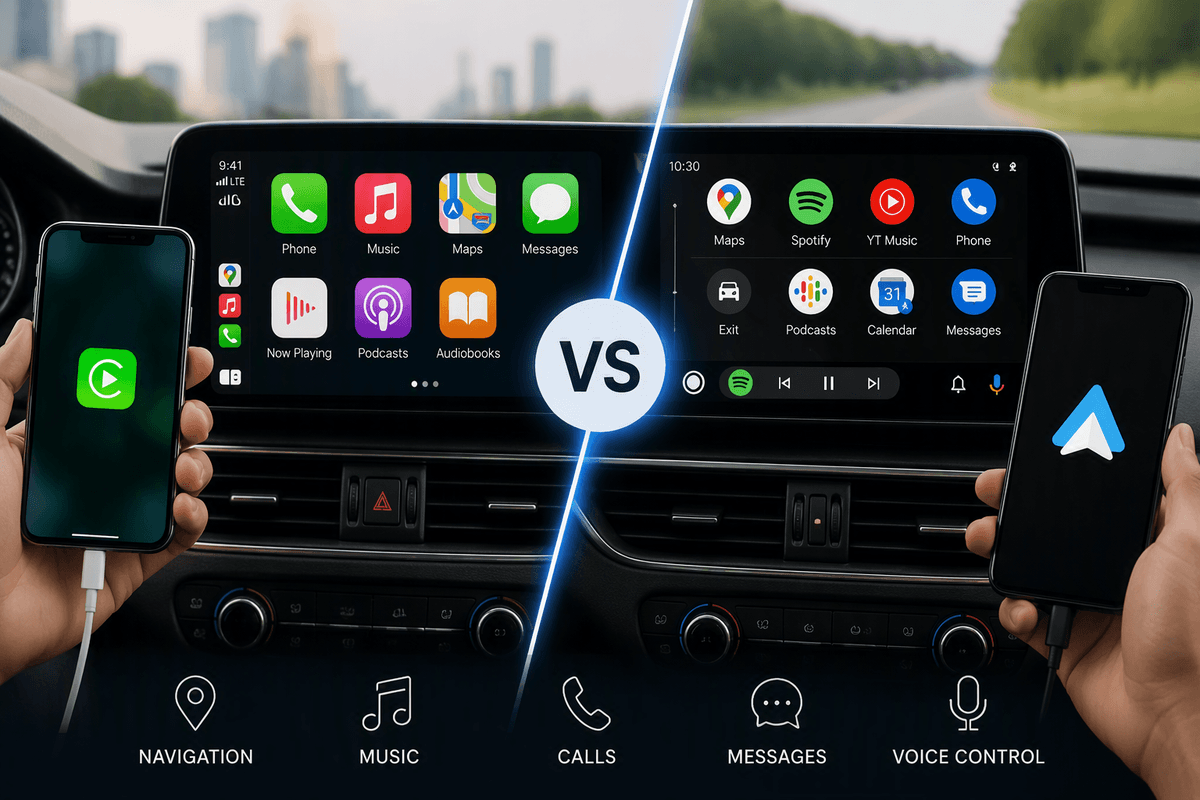
You’ll usually see the choice framed as Apple CarPlay versus Android Auto, but the day-to-day goal is the same: put a safer, simplified version of your phone on the car’s screen for maps, calls, texts, and audio. The practical difference starts with what you already carry—an iPhone means CarPlay; an Android phone means Android Auto—so for many drivers it’s not really a preference so much as a compatibility fact.
Where it does start to matter is in the “feel” and the friction: some cars offer one system but not the other, wireless support can be missing or finicky, and a single weak USB port can turn an otherwise clean setup into a constant annoyance. Treat the platform as the last step; treat your car’s support (and your phone model) as the first check.
How each system actually works in your car
In most cars, neither CarPlay nor Android Auto is “running” on the dashboard the way built-in navigation does. Your phone does the heavy lifting—maps, music apps, message handling—and the car mostly acts as a display, a microphone/speaker path, and a controller through the touchscreen, knobs, and steering-wheel buttons. That’s why the experience can feel fast in one car and laggy in another even with the same phone: the vehicle’s USB data speed, screen resolution, and input hardware still matter.
Wired connections usually mean fewer dropouts and more consistent startup, because the link is simpler and your phone stays powered. Wireless adds convenience but introduces extra variables: Wi‑Fi/Bluetooth handshakes, interference, and occasional reconnect loops after short stops. Either way, your phone’s battery, heat, and background app clutter can show up as stutters or delayed voice responses, especially on older devices.
Compatibility surprises: phone models, cars, and model years
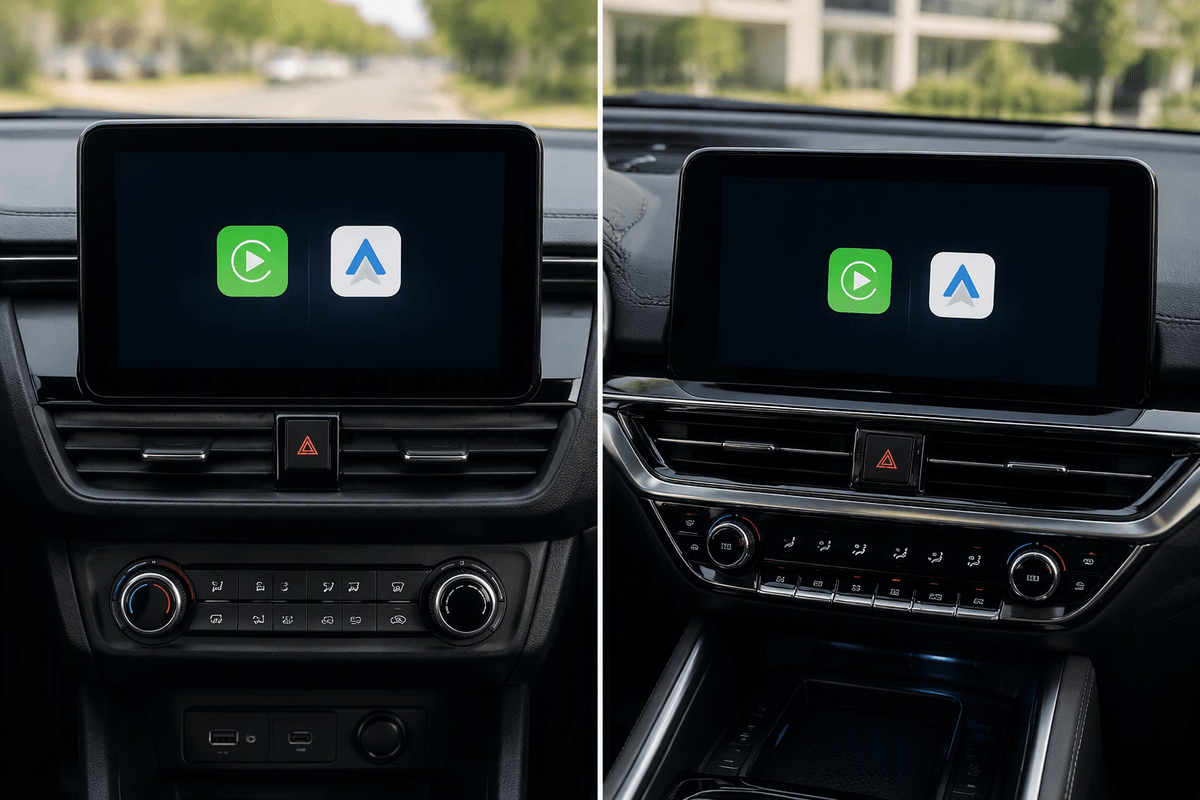
The biggest “gotcha” is that support isn’t just brand-based; it’s trim, model year, and even head-unit version. A 2020 car might have CarPlay and Android Auto on the higher trim but not the base one, or it might add wireless only after a mid-cycle refresh. Used-car listings often get this wrong, so confirm in the car’s settings screen (or the original window sticker/build sheet) before you assume anything.
On the phone side, CarPlay requires an iPhone, while Android Auto requires an Android phone that’s new enough to run current Google services reliably. Some older Android models connect but act flaky—random disconnects, delayed audio, or a black screen—especially in cars with slower USB ports. Also watch for “USB-C everywhere” cars paired with older USB-A cables or cheap adapters; the connection can technically work while still causing constant drops.
Setup and daily reliability: wired, wireless, and glitches
You’ll feel the difference most in the first 30 seconds of a drive. With wired CarPlay or Android Auto, you plug in once, the system pops up quickly, and your phone stays charged—often the simplest answer if you do lots of short trips, use navigation daily, or share the car with other drivers. The trade-off is physical: some cars have a single “data” USB port (others are charge-only), and a worn cable or a loose port can create the exact kind of intermittent disconnect that’s hardest to diagnose.
Wireless is cleaner on the console but fussier in real life. Expect occasional delays after starting the car, reconnect loops after quick stops at gas stations, and more sensitivity to crowded Wi‑Fi/Bluetooth environments. It also shifts the “cost” to your phone: more heat, more battery drain, and more performance dips if your phone is older or running a lot in the background. If reliability matters, start by swapping to a known-good cable and cleaning up paired devices before blaming the car.
Interface and voice control: what you’ll notice while driving
The first thing you’ll notice is how the home screen behaves when you’re moving. CarPlay tends to feel more “locked down” and consistent across cars: big tap targets, a predictable grid, and fewer layout surprises. Android Auto is also designed for quick glances, but it can feel more flexible—your phone’s settings and Google account choices show up more, and different cars expose different shortcut buttons or split-screen layouts. In both, the real usability test is whether you can hit “Home,” “Back,” and “Maps” without hunting.
Voice is where most drivers either relax or give up. Siri with CarPlay is usually straightforward for calls, messages, and basic navigation, but it can stumble on third-party app commands and contact name edge cases. Google Assistant in Android Auto is often stronger for conversational navigation searches (“nearby,” “on the way”), but it can mishear in noisy cabins or with weak factory microphones. If voice matters, test it with your windows down and the HVAC on—some cars simply don’t capture speech cleanly.
Apps and features that change the experience
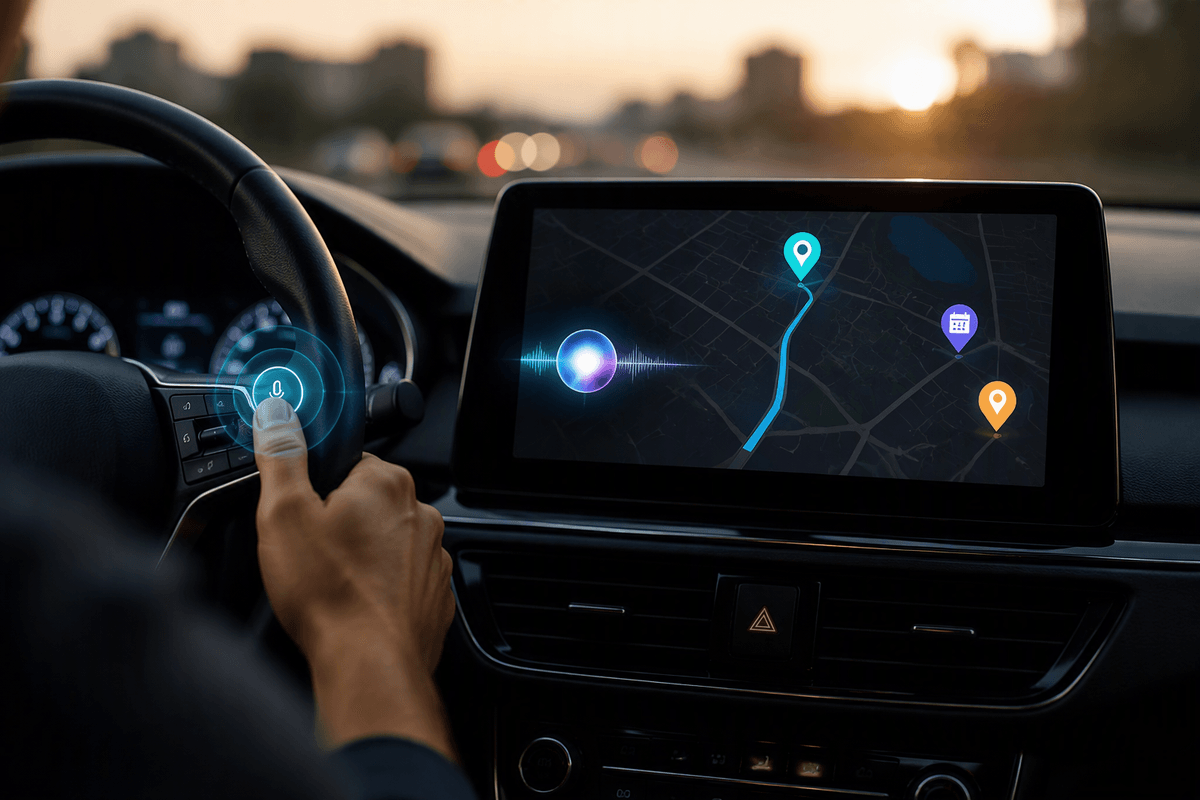
The app lineup is mostly overlapping—maps, music, podcasts, and messaging—but a few choices change the experience. If you live in Apple’s world, CarPlay’s tight integration shows up in small conveniences like consistent call handling and predictable audio switching, and Apple Maps has improved enough that many people stop installing a separate nav app. Android Auto’s advantage is how naturally Google services fit: Google Maps search, calendar addresses, and Assistant-driven “find a stop on the way” requests can feel faster than poking at the screen.
Where it gets practical is what your favorite apps actually do on the dashboard. Some music apps support full browsing and “Up Next” controls; others only give you play/pause and skip, which pushes you back to your phone (not what you want while driving). Messaging is similar: both can read texts and let you reply by voice, but group chats, third-party messengers, and long dictation can be inconsistent depending on the app. Also expect limits: video apps are blocked, and newer features can require recent phone OS versions even if the car is compatible.
Privacy, data sharing, and what your car can learn
You’ll notice the privacy question the first time the car “remembers” you: your recent destinations, your call history on-screen, or the fact that it auto-connects the moment you start the engine. With CarPlay and Android Auto, most of what you do still lives on the phone account (Apple ID or Google), but the car can retain pieces of the relationship—paired devices, contact favorites, recent nav searches, and sometimes a driver profile tied to a key fob or seat memory.
The practical risk isn’t usually the platform; it’s the handoff between drivers. If you share the car, sell it, or rent one, take a minute to delete the phone pairing and clear the infotainment’s “recent” lists, not just Bluetooth. Also watch permissions on your phone: allowing notifications, contacts, and “always” location makes voice and messaging smoother, but it also increases what can appear on the dash at the wrong moment. Wireless convenience adds one more constraint: the car may reconnect even when you didn’t intend to.
Choosing between them (and when it doesn’t matter)
If you’re choosing a car, the simplest rule is: pick the system your phone already supports, then prioritize the head unit that starts fast and stays connected. If you’re on iPhone, insist on CarPlay; if you’re on Android, insist on Android Auto. The “better” one is usually the one you can run reliably every single trip.
What to check before you buy: the exact trim and model year, whether wireless is built-in (and if you can disable it), which USB port is the data port, and whether your phone’s OS is current enough to support newer features. When you mostly run one maps app, stream audio, and answer calls, the day-to-day difference is small; the bigger divider is wired stability versus wireless convenience and the hassle of troubleshooting when it gets flaky.