Start with what you actually do on your PC
Most people don’t buy “an i7,” they buy a PC that has to feel quick in a handful of repeatable moments: waking from sleep, opening 20 browser tabs, joining a video call, exporting a project, or keeping a game smooth while Discord runs in the background. Start by listing your top three tasks and the one thing you hate waiting on. Gaming is usually limited by the GPU long before the CPU tier label matters. Office and school work cares more about responsiveness than peak horsepower. Heavier creation work can justify higher tiers, but it also brings real costs: more heat, more fan noise, shorter battery life, and higher laptop prices.
i3, i5, i7, i9: what the names mean now
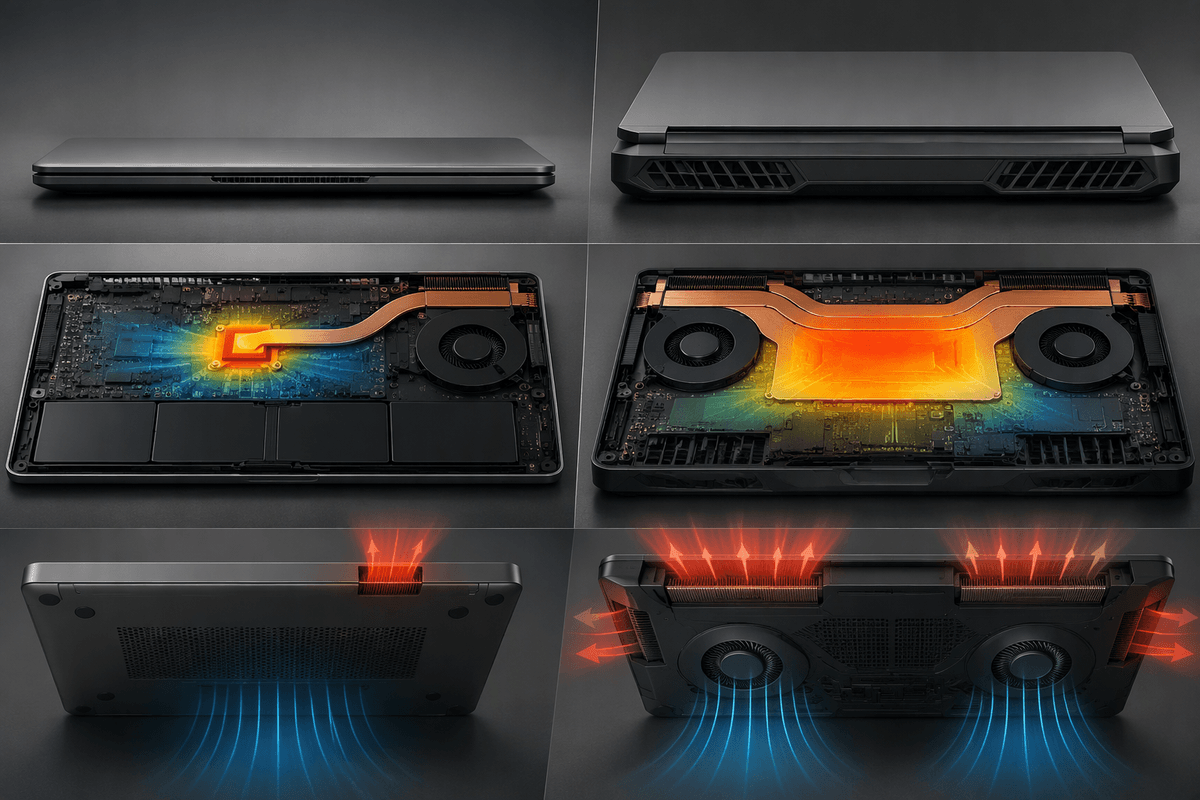
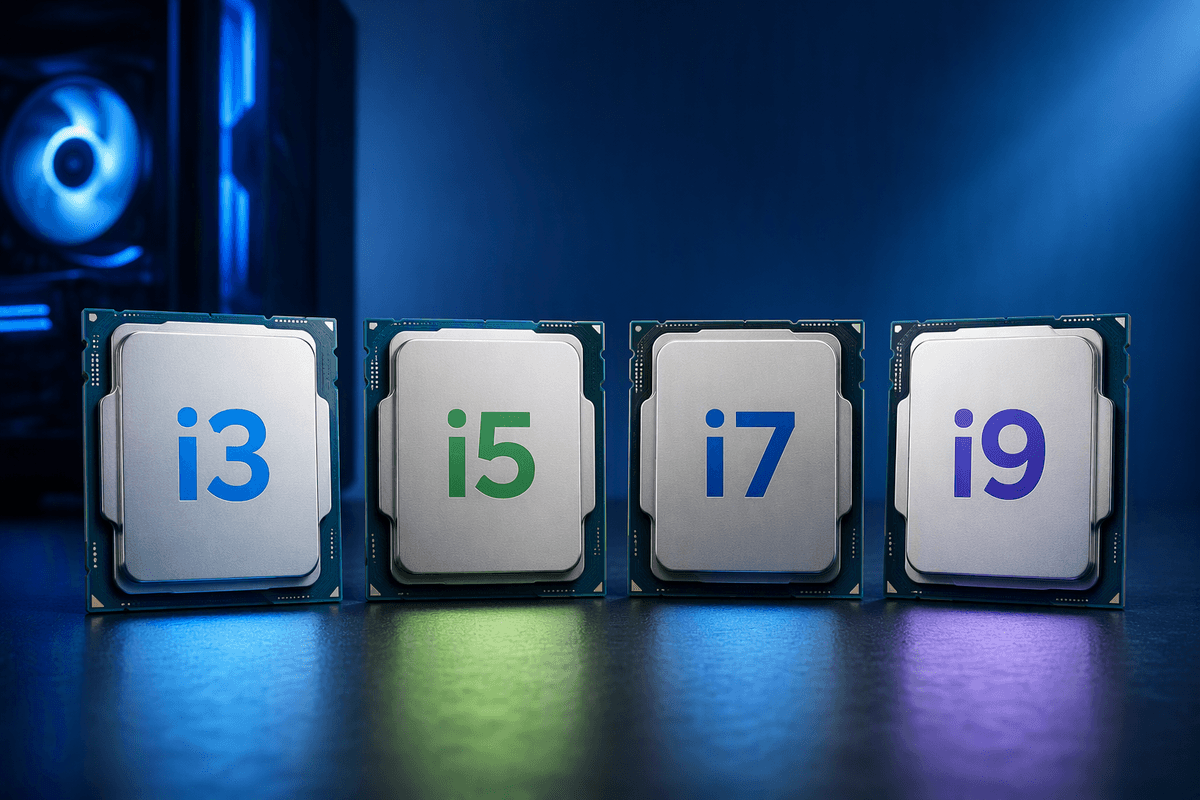
You’ll still see i3, i5, i7, and i9 used like “trim levels,” but they’re no longer a simple ladder where an i7 always beats an i5 in a way you’ll feel. Within a single generation and laptop class, higher tiers usually buy you more cores (often more “E-cores”), higher boost clocks, and sometimes a better iGPU, which can help with long exports, lots of background tasks, or high-refresh gaming when the GPU isn’t the bottleneck. Across generations, the label is much weaker: a newer i5 can outperform an older i7, and a power-limited laptop i9 can behave like a strong i7 because it can’t sustain high wattage.
That’s why the full model name and its power target matter more than the badge. In laptops, thin-and-light designs may cap performance to control heat and noise, while thicker machines can hold higher speeds longer. In desktops, cooling and motherboard settings can swing results more than the tier label, and i7/i9 parts often make you pay extra for a cooler and a higher-wattage PSU to actually see the benefit.
The specs that matter more than the tier label
You can usually predict real-world “feel” from four specs: core/thread count, single-core boost, sustained power, and the iGPU. Cores and threads matter most when your work stacks up—compiling code, exporting video, running VMs, or streaming while you play—because those tasks keep many cores busy for minutes at a time. For everyday speed and many games, strong single-core performance and high boost clocks are often what you notice, but only if the chip can hold them.
That’s where power limits and cooling quietly decide winners. A 45W-class laptop i5 in a thicker chassis can outrun a 28W-class i7 in a thin one during long renders, simply because it sustains higher clocks without throttling. RAM also gates performance more than most tier labels: dual-channel memory and enough capacity (often 16GB minimum for modern multitasking) can make an “i5” system feel faster than an “i7” stuck with slow or single-stick RAM. Finally, check the iGPU name and media features if you rely on Quick Sync, multiple monitors, or you’re skipping a dedicated GPU.
Gaming choices: when i5 beats i7 (and i9)
You’ve probably seen a pricey i7/i9 laptop paired with a midrange GPU, and a cheaper i5 model paired with a faster GPU. For gaming, the second machine often wins. Most modern titles are GPU-limited at 1440p/4K and even at 1080p with high settings, so the GPU upgrade you can afford by choosing an i5 matters more than a tier bump. An i5 with strong single-core boost and enough cores for the game plus background apps can deliver the same average FPS as an i7/i9, while the better GPU raises both average FPS and visual settings.
Higher tiers mainly pay off when you’re chasing high-refresh 1080p (think 144–240Hz) in CPU-heavy games, competitive settings, or when you stream/record while playing. Even then, power limits can flip the result: a well-cooled 45W-class i5 can hold clocks better than a thin-and-light i7/i9 that drops performance to stay quiet. The practical cost is real—i7/i9 gaming laptops often need louder cooling (and sometimes a bigger charger) to sustain any advantage.
Content creation and heavy multitasking: where i7/i9 pay off
You feel the i7/i9 jump most when your PC is doing “minutes-long” work while you keep using it: exporting a 4K timeline, batch-processing RAW photos, compiling a large project, running multiple VMs, or streaming/recording while a game is open. Those loads can keep many cores busy at once, and the extra cores/threads (often extra E-cores on newer chips) translate into shorter waits and fewer slowdowns when Slack, browser tabs, and background sync are all competing for time.
Video workflows are the clearest example. If your editor can use hardware encode/decode (Intel Quick Sync), a well-specced i5 can already be “fast enough” for H.264/H.265 exports, but i7/i9 parts tend to pull ahead when you stack effects, work with heavier codecs, or export while continuing to edit. The catch is that i7/i9 gains can be expensive to unlock: thicker cooling, higher sustained wattage, and often more RAM (32GB is common for serious projects). A power-limited i9 in a thin laptop may not stay ahead once it heats up.
Budget builds and everyday PCs: making i3 and i5 feel fast
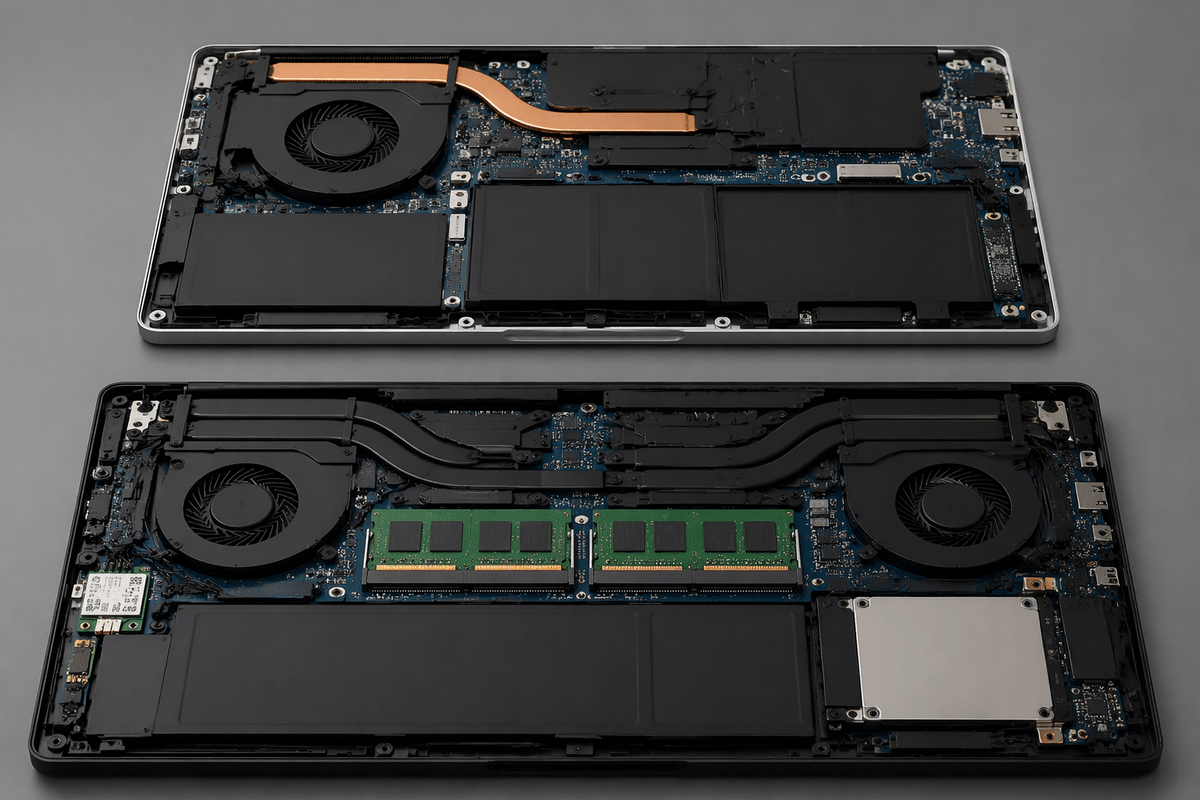
If your PC life is web apps, documents, streaming, and video calls, an i3 or i5 can feel genuinely “fast” when the rest of the build isn’t holding it back. The most common reason budget systems feel sluggish isn’t the tier label—it’s a small SSD (or worse, a hard drive), too little RAM, or single-channel memory. Prioritize a real NVMe SSD and enough memory to keep your normal load in RAM; for many people that means 16GB, especially with lots of tabs and a couple of apps open.
On laptops, don’t pay extra for an i7 if the cooling is tiny and the display, battery, and keyboard are worse. A well-balanced i5 machine with a brighter screen and more RAM is usually the better daily driver. If you’re skipping a dedicated GPU, check the exact iGPU and ports you need for monitors. The practical constraint is upgradeability: many thin laptops solder RAM, so buying enough upfront matters more than the CPU badge.
A quick decision checklist to pick the right tier
If you want a fast, good-value pick, start by locking the generation/model and the laptop class (28W thin-and-light vs 45W performance) or desktop cooling, then decide the tier. Choose i3 when your work is mostly web/docs/streaming and you can spend on 16GB RAM and an NVMe SSD. Choose i5 for the best “all-around” mix, and to free budget for a better GPU in gaming builds. Choose i7 when you regularly export, compile, run VMs, or stream while gaming. Choose i9 only when those heavy jobs are daily and you’ll pay for stronger cooling, higher power draw, and often 32GB+ RAM.