Why Facebook security codes fail (and why it matters)
You type your password, hit “Send code,” and then nothing shows up—or it arrives 20 minutes later after you’ve tried again three times. Facebook security codes fail for a few common reasons: the code is going to a different place than you think (old number, old email, authenticator app), the request is being throttled after repeated attempts, or the message is being blocked by your carrier, spam filters, or a weak data connection.
It matters because random retrying usually makes it worse. You can trigger longer wait times, lockouts, or a “no code” loop that keeps resending to the same broken route. Worse, if your account was taken over, a missing code may be a sign the attacker changed where codes go—and you’ll want recovery steps that don’t alert them.
Confirm the exact code path: SMS, email, or authenticator
Most “no code” problems start with a simple mismatch: you’re waiting for an SMS, but Facebook is actually sending an email—or it expects an authenticator code and won’t send anything at all. Look closely at the checkpoint screen text. If it says “Enter the 6-digit code from your authentication app,” opening Messages won’t help; you need the authenticator app you originally set up (often Google Authenticator, Duo, or similar). If it says it sent a code to an email, note whether it shows a partially masked address you recognize. Same with SMS: confirm the last two digits of the phone number are yours, not an old SIM or work line.
If the screen offers “Try another way,” use it once to verify what options are actually enabled on your account. Don’t keep switching methods repeatedly—each attempt can add delays and rate limits.
Stop the “no code” loop: rate limits and blocked requests
If you’ve pressed “Send code” a bunch of times, assume you’re now fighting rate limits. Facebook will quietly slow or block new code requests, so you keep seeing the same screen and nothing arrives. Stop requesting codes for a while. Close the Facebook app and your browser, wait at least 15–30 minutes, then try a single request. If you’re on a shared network (office Wi‑Fi, hotel internet), switch to cellular data or a different Wi‑Fi; repeated failed requests from the same IP can get throttled.
Blocked requests can look the same as rate limiting. Turn off ad blockers or privacy extensions for the login attempt, and try an incognito/private window. If the “Send code” button spins but never confirms a send, that’s often the request being blocked before Facebook can even queue a message. One clean attempt beats ten rapid retries.
Fix the usual SMS and email delivery blockers fast

If it’s definitely SMS, start with the phone basics that block short codes. Make sure you have signal and can receive a normal text, toggle Airplane Mode on/off, then restart the phone. Check that your SMS inbox isn’t full, and look for “Blocked” or “Spam & blocked” folders (Android Messages) or filtered senders (iPhone). If you use a third‑party texting app, switch back to the default Messages app. Also confirm the SIM/number is active—codes won’t land on a Wi‑Fi–only device unless it can receive SMS.
If it’s email, search the inbox for “Facebook” and “code,” then check Spam/Junk, Promotions, and any quarantine your provider applies. Temporarily disable aggressive filters, pause auto-forwarding rules, and clear mailbox storage if you’re at quota. Some work/school domains delay or reject automated messages, so trying an alternate email method inside the checkpoint can be faster than waiting.
Try alternate verification routes inside the login flow
When you’re sure the code route is failing, the fastest win is using what Facebook already offers on the checkpoint screen—without bouncing around randomly. Tap “Try another way” and look for options like approving the login from another device where you’re still signed in, confirming a recent login notification, or using an authenticator code if it was enabled. If you have backup codes saved (often from when you turned on 2FA), this is where they usually work best. Use one route, complete it, and stop—switching methods mid-stream can restart the checkpoint and extend delays.
If you see an option to verify from a different device, pick the one you’ve used before (your main phone or home computer). A new device plus a new network often triggers stricter checks. The limitation: if your only signed-in device was logged out, wiped, or you replaced your phone, these alternate routes may not appear, and you’ll need recovery steps instead of more retries.
When codes arrive late or wrong: time, apps, and browsers
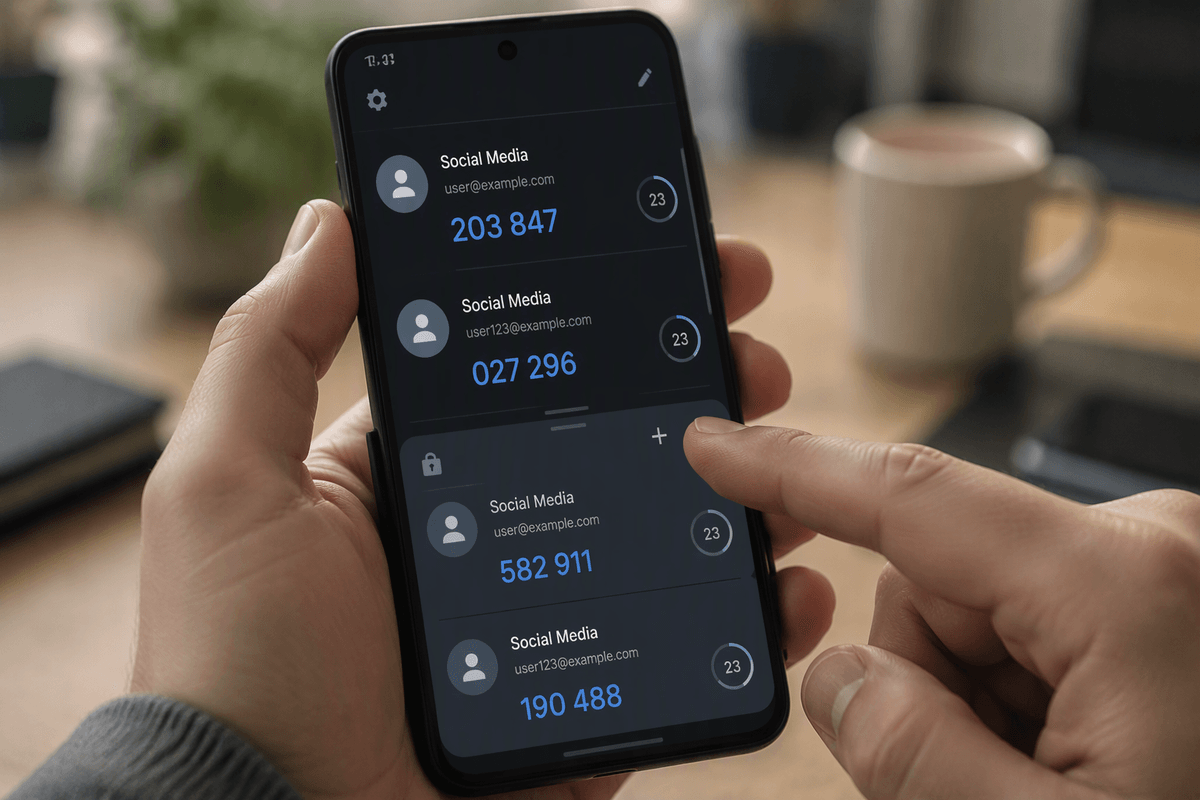
You finally get a code, but it’s “invalid” or already expired. That usually means you have multiple active codes and you’re entering an older one, or your device time is off. Use only the most recent message, don’t mix SMS and email codes, and after one request wait a minute before requesting another. Check that your phone and computer are set to automatic date/time and automatic time zone; a few minutes of drift can break authenticator-based codes.
If the screen expects an authenticator code, open the exact app you originally used and make sure it’s generating codes for Facebook (not a similarly named entry). If you recently changed phones, you may have lost the authenticator seed and the new codes won’t match. On the browser side, try a different browser or an incognito window, allow cookies, and temporarily disable extensions; some privacy tools interfere with the checkpoint session and make valid codes fail.
If you suspect a hacked account, recover without tipping off attackers
A common “no code” scenario is an account takeover: the attacker changed the email or phone on the account, so Facebook is sending codes somewhere you can’t see. If the masked email/number on the checkpoint isn’t yours, stop trying to “guess” your way through. Use a clean path: open a private/incognito window on a device you trust, go to Facebook’s account recovery flow, and look for options like “no longer have access to these?” so you can prove identity without repeatedly sending alerts.
Avoid actions that warn an attacker who’s still logged in, like changing the password first (it can trigger them to lock you out further). If you’re still signed in anywhere, go straight to security settings to log out of other sessions and turn on stronger 2FA, but expect friction: Facebook may require ID checks or a waiting period before letting you remove a new email/number.
Escalate when nothing works—and prevent it next time
If nothing works after a few clean attempts and real waiting time, stop burning tries and move to official recovery. Use a trusted device and network, then go through Facebook’s “Find your account” flow and follow prompts for “no longer have access to these?” If you hit an ID upload step, use clear photos and expect it can take hours or days; repeated submissions can slow reviews. If you’re still logged in anywhere, secure that session first: change password, log out other devices, and remove unknown emails/numbers.
After you’re back in, save backup codes, add a second recovery email/phone you control, and keep your authenticator app backed up or transferred properly before switching phones.