When you need to cite YouTube, and what counts
You usually need to cite YouTube when a video supplies evidence you rely on: a claim, statistic, demonstration, interview, or a quotation you analyze. If it’s only background watching that doesn’t shape your argument, it typically doesn’t belong in your sources. “Counts” includes the specific video you watched (not a search results page), plus any identifiable uploader or creator name, the exact title as shown, the upload date, and a stable URL. If you’re pointing to a particular moment—like a definition at 3:12—plan to capture a timestamp, because your reader can’t easily “find it” otherwise.
Grab the right details before you format anything
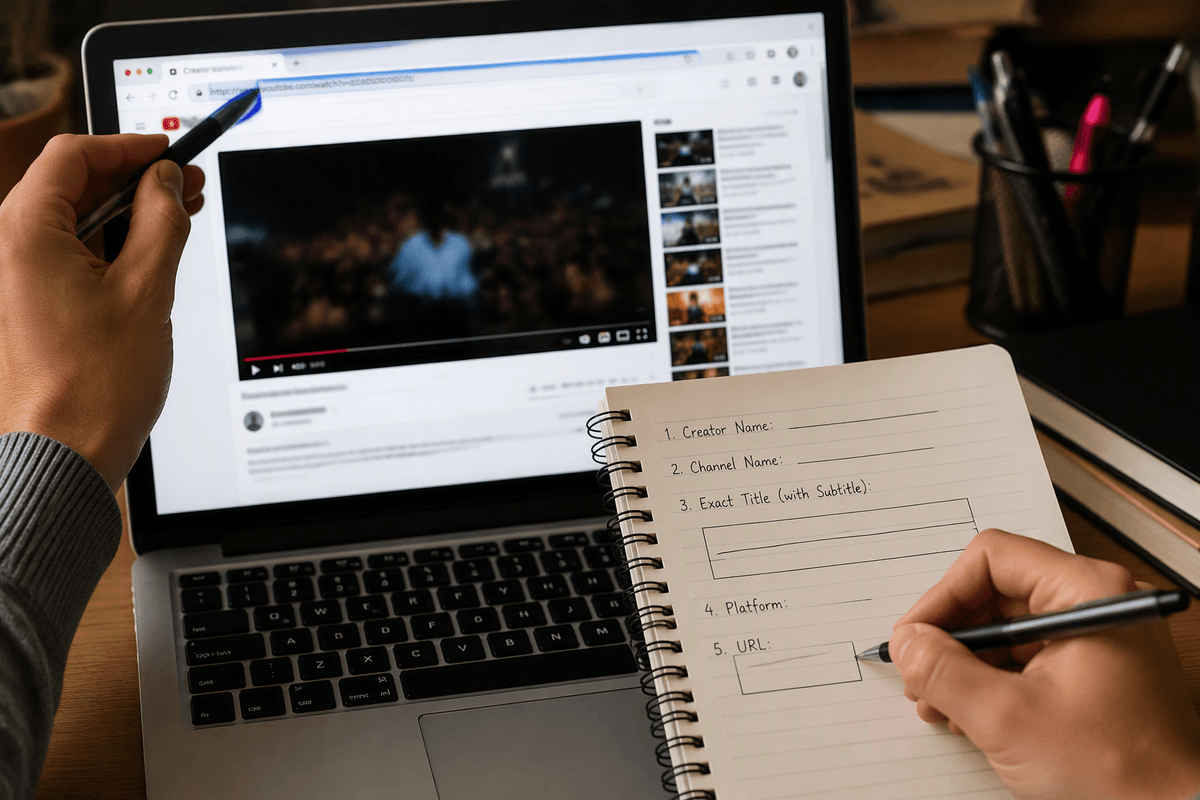
You’ve probably noticed YouTube gives you more than one “name” to work with. Capture both: the creator name as presented in the video or description (a person, organization, or show) and the channel name that uploaded it, since MLA and APA may prioritize them differently. Record the video title exactly as it appears, including any subtitle after a colon. Copy the full URL from the address bar, not a shortened share link when you can, and note the platform (YouTube) if your style requires it.
Dates are the most common source of mistakes. Write down the upload date shown under the video, and if the description clearly labels a different publication or livestream date, save that too so you can justify your choice later. If you’ll quote or analyze a specific moment, jot a timestamp range (for example, 3:12–3:45) while you watch. Expect practical snags: titles and descriptions can be edited, videos can be reuploaded, and a removed video may leave you with only your notes.
MLA Works Cited: the standard YouTube video pattern
YouTube entries in an MLA Works Cited list usually follow a consistent pattern: “Creator or uploader,” “Video Title,” YouTube, uploaded by Channel Name (if different from the creator), Day Month Year, URL. Start with the name that best functions as the author—the person or group responsible for the content—not automatically the channel. If the channel is clearly the creator (common for individual YouTubers), list it once and skip the “uploaded by” phrase.
Put the video title in quotation marks, then italicize YouTube as the container. Use the full date shown on the video page (for example, 8 Sept. 2026), and end with the direct URL. MLA citations for videos don’t normally include timestamps in Works Cited; save timestamps for your in-text citations. One real limitation: MLA wants stable, retrievable sources, but YouTube titles and channel names can change, so accuracy depends on the details you captured when you watched.
MLA in-text citations: quoting, paraphrasing, and timestamps
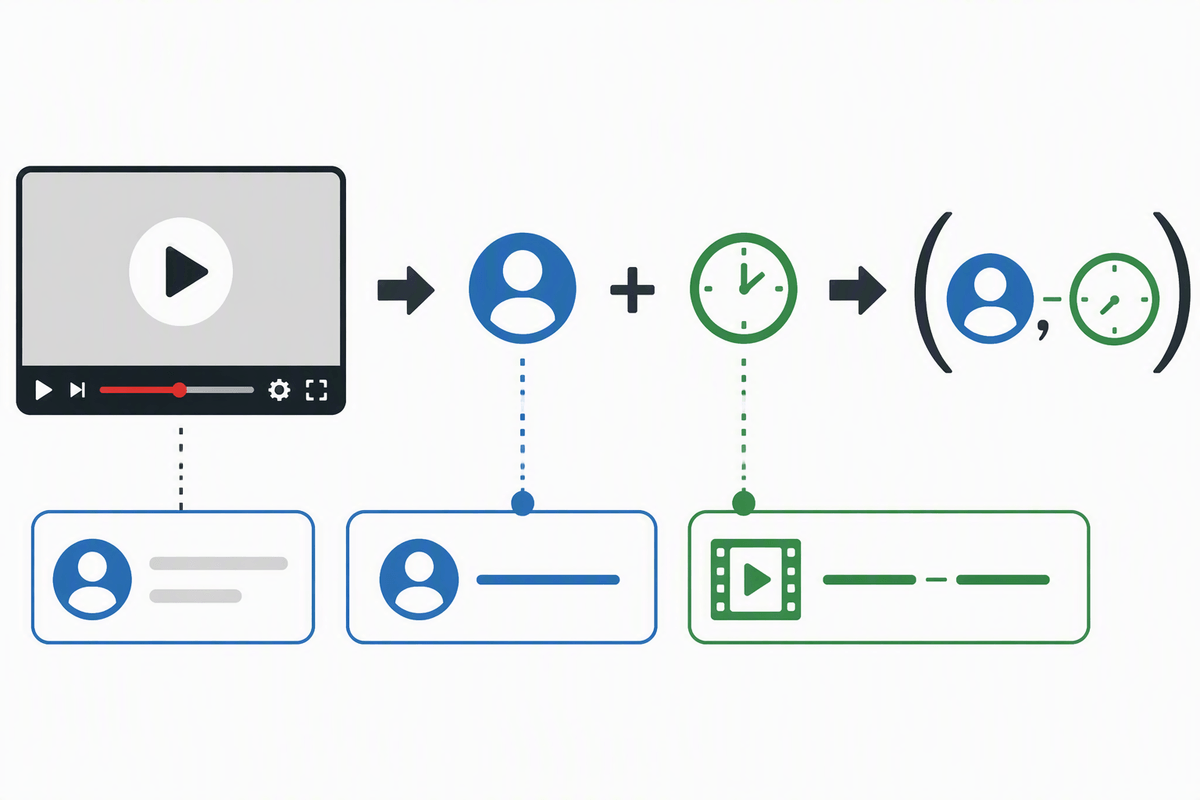
You’ve likely felt the awkward part of YouTube evidence: your reader can’t “turn pages” to find the line you mean. In MLA, keep the in-text citation simple: use the author name (or the channel/organization you began with in Works Cited). If you quote a spoken line, treat it like any quotation, then add a time marker instead of a page number: (Lopez 3:12–3:18). If you paraphrase an idea from a longer segment, you still cite it, but you can use a broader range: (National Weather Service 10:05–11:20).
Use the same label every time. If your Works Cited starts with a channel name, don’t switch to a different creator name in parentheses midway through the paper. A practical constraint: timestamps can drift if a video is edited or reuploaded, so write down the range as you watch, not after you’ve closed the tab.
APA reference list: choosing the author and date correctly
You can feel the pressure point in APA when the “author” isn’t obvious. In an APA reference list, the author is the person or group responsible for the content, which is often the channel name as it appears on YouTube. If the video clearly credits a creator and the channel is just an upload hub, you can still use the credited individual or organization as the author, but you need to be consistent with whatever name you’ll use in your in-text citations.
For the date, APA uses the year-month-day of the upload date shown on the video page. Don’t substitute the day you watched it unless your instructor specifically requires a retrieval date (most class papers don’t). A basic pattern looks like: Author. (Year, Month Day). Title of video [Video]. YouTube. URL. One real limitation is that YouTube metadata can change after publication, so the “right” author and date depend on what was visible when you accessed the video.
APA in-text citations: names, years, and time ranges
APA in-text citations stay tied to whatever you used as the author in your reference list: usually a person’s surname, or the channel/organization name if no individual author is credited. That means you’ll typically write either a parenthetical citation like (Kurzgesagt – In a Nutshell, 2020) or a narrative one like Kurzgesagt – In a Nutshell (2020) explains…. If the author name is long, you can introduce it in the text once and keep later citations in the standard author–year form.
When you’re pointing to a specific moment, APA lets you add a time range after the year, separated by a comma: (National Geographic, 2019, 2:10–2:46). Use the range for quotes, precise definitions, or a claim that appears briefly. A practical constraint: because edits and reuploads can shift timings, cite the smallest range that still captures your evidence and keep your notes from the viewing session.
Tricky cases: missing dates, reuploads, and multiple creators
You’ll run into videos where the page doesn’t give you a clean author-and-date combo. If a date is missing, treat it as “no date”: MLA lets you omit the date if you truly can’t find one, while APA uses (n.d.) in the date position; in both styles, consider adding an access date only if your instructor or department expects it. For organizational uploaders (a university, agency, or brand channel), use that organization as the author rather than forcing an individual name that isn’t credited.
Reuploads are where small choices matter. Cite the version you actually watched, using that upload date and URL, even if the content was filmed earlier; if the description clearly states “originally published” elsewhere, you can mention that context in your text, not by swapping dates in the citation. When multiple creators are involved (host plus production company, or a featured speaker on another channel), pick one consistent “author” that matches the responsibility for the video, then use your notes to clarify roles in your sentence rather than overloading the reference.
A quick checklist so your YouTube citations hold up
Before you submit, sanity-check the basics: did you cite the exact video page you watched (not search results), with the full title, upload date, and a direct URL? Confirm your “author” choice is consistent across the paper: if your MLA Works Cited or APA reference list starts with a channel/organization, your in-text citations should use that same name.
For pinpoint evidence, add a timestamp range in the in-text citation (not the bibliography), and keep the range as tight as your quote or claim. If details are missing, document what you could verify (APA: use n.d. when no date is available), and avoid guessing; a wrong date or swapped creator is harder to defend than an honest gap.