What “deleted” means inside a PST file
In a PST file, “deleted” doesn’t always mean “gone.” Most of the time, an item you delete is just moved to the PST’s Deleted Items folder, so it still exists and is easy to restore. If you delete it again (or empty Deleted Items), Outlook usually marks it as a “hard delete,” which hides it from normal views but may still leave it inside the PST until Outlook reuses that space later. That reuse is the key limit: the more you keep working in Outlook (moving mail, syncing, compacting), the higher the chance the old data gets overwritten.
Start with the simplest win: Deleted Items and search

The first place to look is still the obvious one: open the PST’s Deleted Items folder and sort by Deleted (or Date Modified) so the newest removals float to the top. If a whole folder went missing, also expand the folder list and check whether it was dragged under a different mailbox or PST by accident; that happens more than people realize.
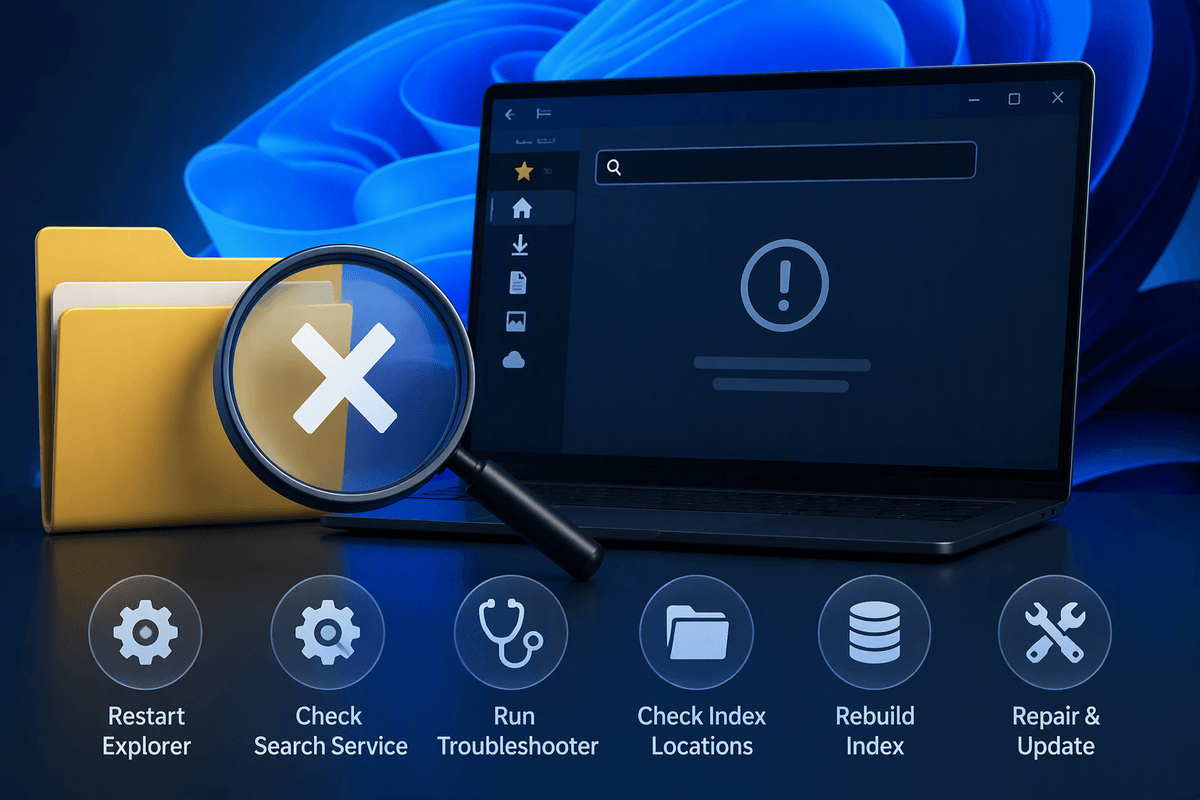
If Deleted Items is empty or too noisy, use Search before you try anything heavier. Click into the PST (or the parent folder you remember using), then search for a sender, a distinctive subject word, or an attachment name. Set the scope to search “Current Mailbox” (for that PST) or “All Outlook Items,” and don’t forget non-mail items—contacts and calendar entries can land in unexpected places. One practical constraint: Windows/Outlook indexing can lag, so a brand-new search may miss items until indexing catches up; repeating the search after a few minutes can change the result.
Use “Recover Deleted Items” before you touch the PST
If you can’t find the item in Deleted Items, don’t jump to PST repair yet. Many Outlook setups support a second “safety net” called Recover Deleted Items, which can bring back items that were hard-deleted (Shift+Delete) or removed after you emptied Deleted Items. In Outlook, click the folder the item came from (often Deleted Items), then look for “Recover Deleted Items from Server” or “Recover Deleted Items” on the ribbon. You’ll get a list of recoverable items; select what you need and choose Restore. Some versions also let you “Purge,” which is permanent—avoid that unless you’re sure.
The practical limitation is that this feature isn’t always available for PST-only storage, and even when it is, it’s time-limited (retention policies can remove recoverable items after days or weeks). If you don’t see the button or the list is empty, that’s useful information: it means you’re likely past the easy recovery paths and should move on to access, repair, or backups.
If the PST is missing or won’t open, fix access first
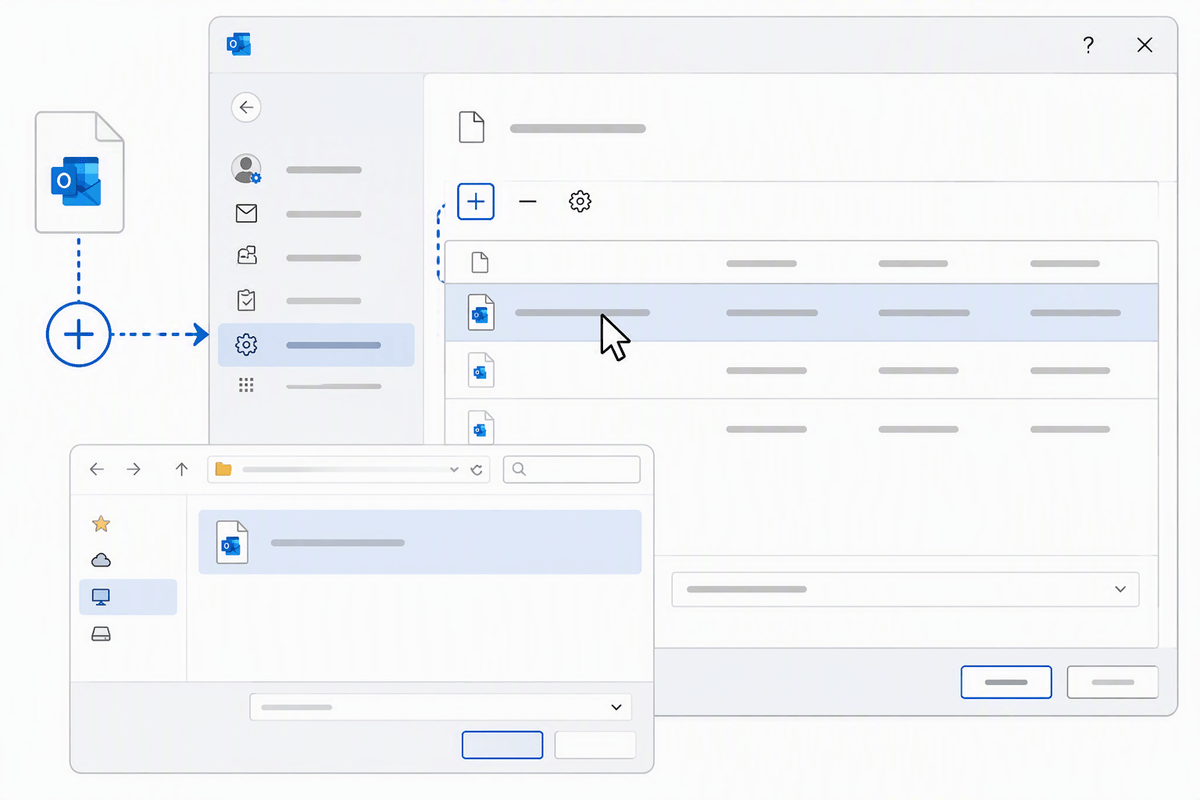
You’ll sometimes get stuck before recovery even starts: the PST isn’t listed in Outlook anymore, or Outlook says it can’t open the file. Before you assume the contents are gone, rule out simple access problems. In Windows File Explorer, find the .pst, confirm it still exists, and note the full path. If it’s on a network share, external drive, or OneDrive/Dropbox folder, move it to a local folder (like Documents\Outlook Files) and try again—PSTs are less reliable over “syncing” storage.
Also check permissions and locks: right-click the PST, open Properties, and clear “Read-only.” Make sure Outlook is fully closed (including in Task Manager) so the file isn’t still in use. If the file is present but won’t mount, add it back via Outlook’s Data Files settings rather than double-clicking it.
Repair the PST with ScanPST to restore visibility
Sometimes the “missing” folder or items are still in the PST, but Outlook can’t read the file cleanly enough to show them. That’s when Microsoft’s Inbox Repair Tool (ScanPST.exe) is worth trying. Close Outlook completely, then run ScanPST against the PST file you found in File Explorer. If you’re not sure where ScanPST is installed, search Windows for “ScanPST” and launch the one that matches your installed Office version. Let it scan, and when prompted, allow it to create a backup and run the repair.
After the repair, reopen Outlook and expand the PST again. Look for a “Recovered Personal Folders” or “Lost and Found” area—repaired content often lands there rather than returning to the original folder path. A real constraint: ScanPST can fix structure problems and bring folders back into view, but it can’t recreate items that were already overwritten inside the PST, and repeated repair passes can sometimes shuffle or duplicate items. If the PST is on a flaky drive or sync folder, move it local before repairing to avoid making corruption worse mid-process.
When built-in options fail: restore from backups or exports
When nothing shows up after search, Recover Deleted Items, and a ScanPST pass, the most reliable path is often to restore a known-good copy rather than keep “digging” in the same PST. Check for Windows File History, backup software, an IT-managed backup, or even an older PST someone exported months ago. The goal is to get a second copy you can open side-by-side in Outlook, then copy the missing folder or items back into your current PST or mailbox.
If you find a backup PST, don’t overwrite your current one. Copy the backup to a new filename (so you can’t accidentally replace the only working file), then use Outlook’s Open & Export to open it or import from it. Importing can be faster for bulk restores, but it’s also messier: duplicates are common, and calendar/contacts can merge in ways that take time to untangle. For a smaller set of items, opening the backup PST and dragging the specific folder across is usually safer and easier to verify.
Last resort tools and how to prevent this next time
If you still can’t locate the items, you’re in “specialized tool” territory: third‑party PST repair/recovery utilities that scan the file and try to extract messages, contacts, and folders into a new PST. Use them only on a copy of the PST, expect incomplete results (especially for older deletions), and budget time for cleanup—recovered data often loses folder structure or shows duplicates. If the PST sits on a failing drive, clone it first; continued access can worsen damage.
For prevention, keep PSTs local, avoid storing them in OneDrive/Dropbox sync folders, and set a simple routine: weekly PST copy to a backup location and a quarterly export of key folders. Most “permanent” losses happen because there was no second copy to fall back to.