Why PATH matters and when you actually need it
You install Python or Git, open PowerShell, type python or git, and Windows replies that the command “is not recognized.” That usually means Windows can’t find the program’s executable from the folders it searches automatically. PATH is the ordered list of folders Windows checks when you run a command without a full path like C:\Program Files\Git\bin\git.exe. You only need to edit PATH when you want a tool to run from any terminal window, from scripts, or from build tools. If you always launch it from a Start Menu shortcut, PATH may not matter.
Decide first: User PATH vs System PATH (and admin access)
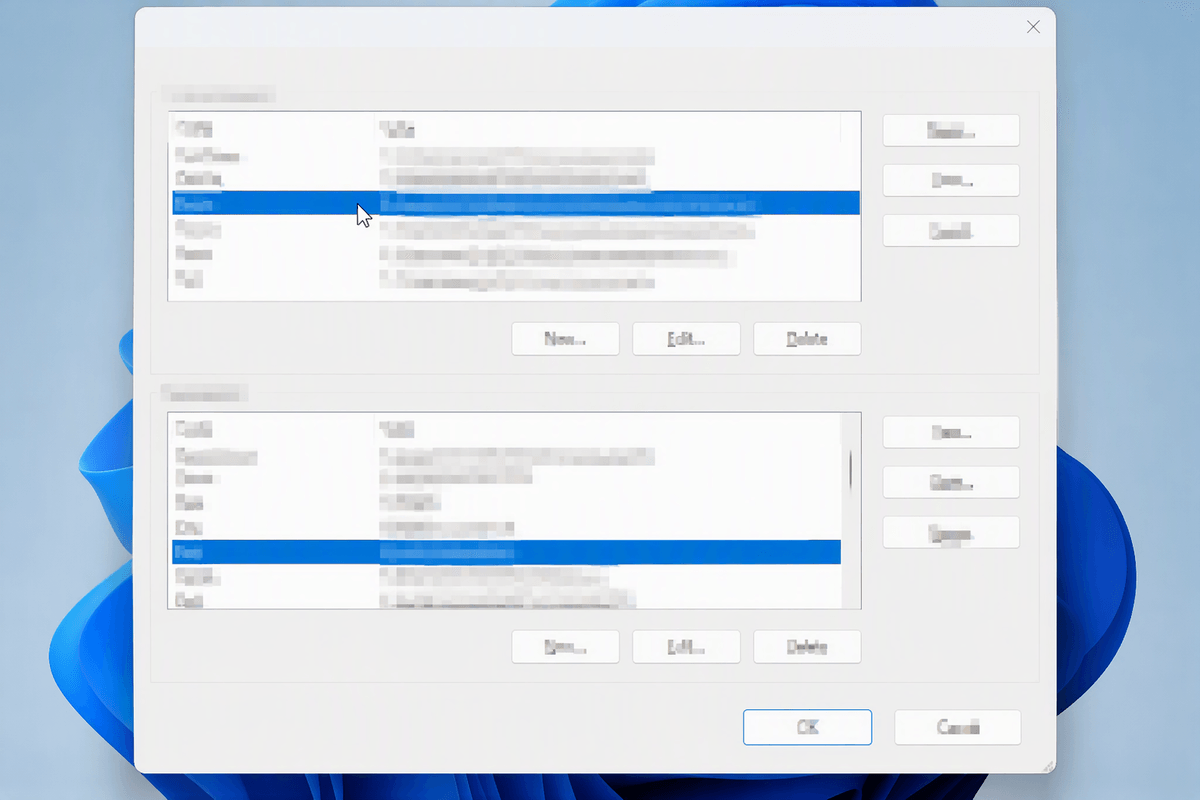
You’ll usually see two PATH entries: User PATH (applies only to your Windows account) and System PATH (applies to everyone on the machine). If you’re setting up a developer tool for yourself, User PATH is the safer default because it won’t affect other accounts or services, and it typically doesn’t require admin rights. Use System PATH when the tool should work for all users (shared build agents, classroom PCs, a family machine), or when something runs under a different account (some scheduled tasks and services). Editing System PATH generally requires administrator access, and a mistake can break existing commands for the whole computer. If you’re not sure, start with User PATH; you can always move it later.
Find the exact folder to add (avoid the common wrong one)
You’re usually trying to add the folder that contains the actual executable you want to type, not the “app” folder or a parent install directory. A quick way to confirm is: find the program’s .exe in File Explorer, then make sure you can see that file sitting in the folder you plan to add. For Git, people often add C:\Program Files\Git\ (wrong) instead of a folder that contains git.exe, such as ...\Git\cmd. For Python from python.org, it’s commonly the install folder that contains python.exe plus its Scripts folder (for pip.exe). For Node installed via nvm, the path is different and can change with versions, so verify where node.exe actually lives.
Add a folder to PATH using Windows Settings (Windows 10/11)
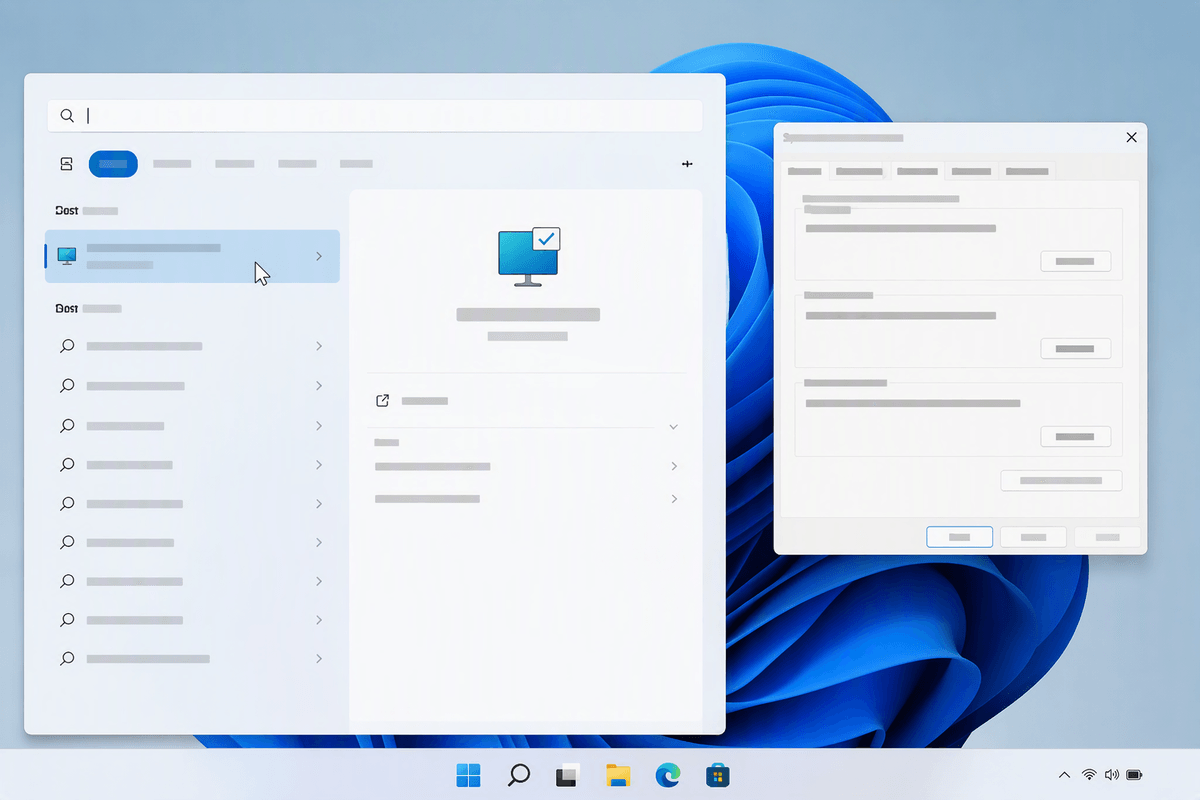
Open the Start menu and search for “Environment Variables,” then choose “Edit the system environment variables.” In the System Properties window, click “Environment Variables…” at the bottom. Under “User variables for your name,” select Path and click Edit (use the “System variables” Path only if you intentionally chose System PATH and have admin access). You’ll get a list of entries; click New, paste the folder that contains the .exe you want to run, and click OK through each dialog to save.
Don’t overwrite the whole value. Older dialogs show PATH as one long line; if you’re on a machine like that, be extra careful to keep the semicolons and add your entry at the end. Keep each entry as a folder path only (not the .exe), and avoid quotes unless the UI adds them automatically. If you’re adding both python.exe and pip.exe, you typically add two folders: the main install folder and its Scripts folder.
Add to PATH from the command line (PowerShell and setx)
Sometimes it’s faster (or easier to script) to update PATH from PowerShell. First, decide whether you’re updating User or System PATH. For User PATH, append a folder like this (replace the example path): $p = [Environment]::GetEnvironmentVariable("Path","User"); [Environment]::SetEnvironmentVariable("Path", "$p;C:\Tools\Git\cmd", "User"). For System PATH, change "User" to "Machine", but run PowerShell as Administrator and be careful: a bad System PATH can break commands for other users and services.
You’ll also see setx recommended. It works, but it has practical downsides: it writes a new value (so you must include the existing PATH), and long PATH values can get truncated. If you use it anyway, do it as a single append: setx PATH "%PATH%;C:\Tools\Git\cmd" (add /M for System). Changes won’t affect terminals already open.
Confirm it worked: reopen terminals, test commands, and troubleshoot
The change won’t show up inside terminals you already had open. Close every Command Prompt/PowerShell/Windows Terminal window, then open a fresh one and try the command again (for example git --version, python --version, or node --version). If it still fails, first confirm Windows is actually finding the file you think it is: run where git (or where python) to see which executable(s) are being picked up and from which folders. If nothing prints, PATH still doesn’t include the right folder. If multiple lines print, you may have competing installs, and the first one listed is the one that wins.
If where points somewhere unexpected, fix the order: move the intended folder higher in PATH, or remove stale entries for old versions. If you installed from the Microsoft Store, you can also run into “app execution alias” behavior where python resolves to a stub; check Windows “App execution aliases” and disable the ones you don’t want. One practical constraint: some tools need more than one entry (Python often needs both the install folder and Scripts), and long PATHs are harder to maintain—avoid adding duplicates and don’t add entire parent directories “just in case.”
Keep PATH clean over time: safety habits and quick checks
PATH tends to get messy because installs pile up, versions move, and old folders never get removed. When you add a new tool, paste the path from the folder that actually contains the .exe, and keep a quick “before” copy of your PATH in a text file so you can roll back if something breaks. Periodically scan for duplicates, dead folders, and version-specific paths you no longer use. When something stops working, start with where toolname to see what’s winning, then either reorder entries or delete the stale ones (especially old Java, Python, and Git installs).