Know what “Blu‑ray player” means in your living room
You see “Blu‑ray player” on a box and assume it will play anything shaped like a disc. In practice, that label only guarantees Blu‑ray Disc movie playback, and even that has a few real-world gotchas. Many players also handle DVDs, but that doesn’t automatically mean every DVD you own will work (scratches, unusual authoring, and region locks can still stop playback). Ultra HD Blu‑ray (4K discs) is a separate capability that standard Blu‑ray players usually can’t do. And “will it play my burned disc?” is never a safe assumption without checking the exact model.
Blu‑ray Disc, 3D Blu‑ray, and Ultra HD Blu‑ray: what’s supported
Start with the basic Blu‑ray Disc (sometimes called “BD”): if it’s a normal 1080p Blu‑ray movie, any standard Blu‑ray player should handle it. 3D Blu‑ray is different. A regular Blu‑ray player may read the disc but won’t output the 3D signal unless the player specifically supports 3D—and you also need a 3D-capable TV or projector and the right HDMI path. If any link in that chain isn’t 3D-friendly, you’ll typically get a 2D version (when available) or no usable playback.
Ultra HD Blu‑ray (4K UHD discs) is the big divider: standard Blu‑ray players usually cannot play UHD discs at all. You need an Ultra HD Blu‑ray player, and you’ll get the smoothest results with a 4K TV plus a compatible HDMI input (and sometimes an AVR/soundbar) that supports the required copy protection. Even then, HDR support can vary by model—HDR10 is common, while Dolby Vision or HDR10+ is not guaranteed.
DVD playback is common—but not identical across all discs
Pop a DVD into most Blu‑ray players and it will usually work, which is why people treat “Blu‑ray player” as a DVD upgrade. The catch is that “DVD” isn’t one perfectly consistent thing. Commercial movie DVDs use region codes (DVD Region 1 vs 2, etc.), so a disc bought abroad may be rejected even if it’s in perfect shape. Some DVDs are dual-layer (DVD-9) and a few players are pickier about reading the layer change, especially on discs with heavy wear or marginal manufacturing. There are also format differences you’ll notice in day-to-day use: older concert discs and TV box sets may be interlaced video, and some players do a cleaner job deinterlacing and upscaling to your TV than others.
If a DVD stutters or shows blocky motion on one player but looks fine on another, that doesn’t automatically mean the disc is “bad”—it can be the player’s DVD handling, its upscaling settings, or a borderline disc that one drive reads more reliably than another.
Can it play CDs and music discs? Depends on the player
If you’ve still got a shelf of audio CDs, it’s reasonable to expect a Blu‑ray player to work like a CD player—but it’s not guaranteed. Many full-size Blu‑ray players can play standard “Red Book” audio CDs, but some newer or ultra-budget models quietly drop CD support, especially if they’re designed mainly for movie playback and streaming. The only safe check is the spec sheet or the supported-disc list printed on the box/manual.
Music discs are also a mixed bag. SACD and DVD-Audio are niche formats and are often not supported unless the player is marketed for audiophile use. Even when a player reads the disc, your output options can be limited by your setup: some players won’t send high-resolution audio over every output, and routing through an older receiver can force a fallback to basic stereo.
Recordable and “home-burned” discs: the real-world limitations
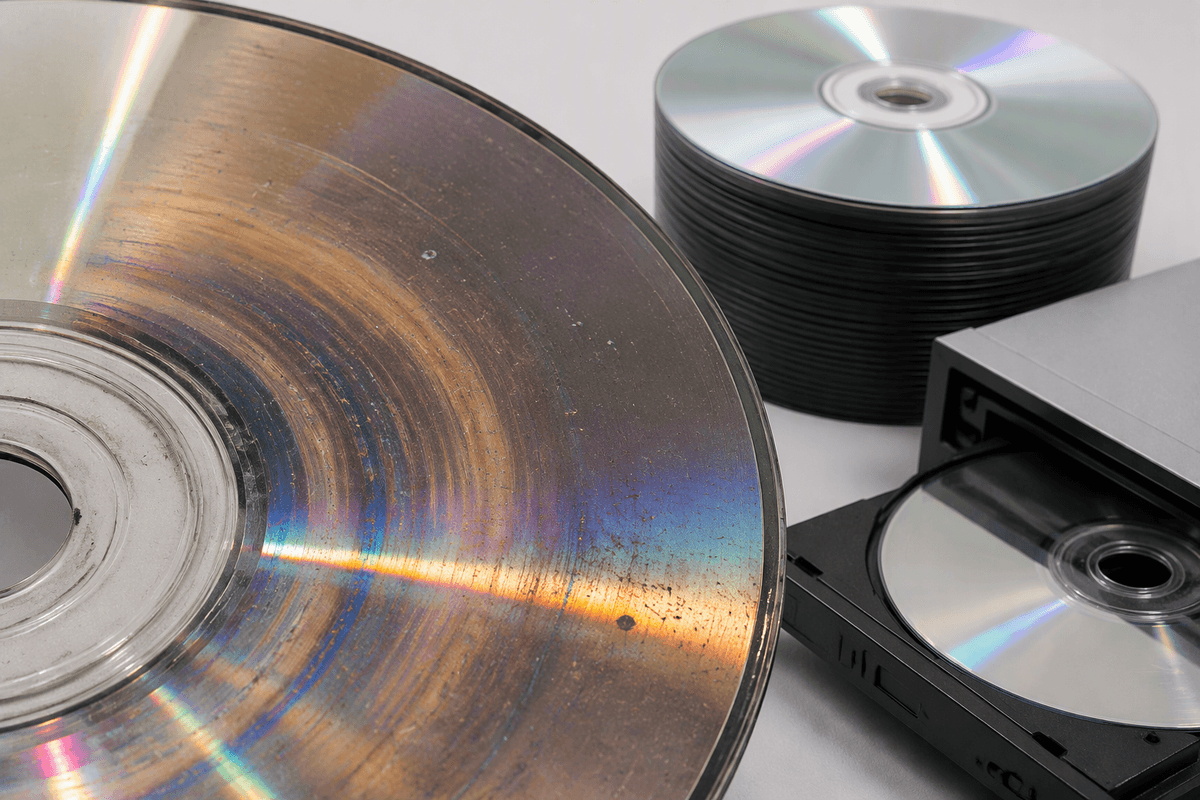
You notice the difference the first time a “perfectly fine” burned disc works in a laptop but not in the living-room player. With recordable media (DVD-R/DVD+R, BD-R, and rewritable DVD-RW/BD-RE), the player has to like both the disc type and the way it was written. Some Blu-ray players officially support only certain recordable formats, and some will read DVD-R but not BD-R, or will refuse rewritable discs entirely. Even when the format is supported, compatibility can hinge on burn quality: cheap blanks, burning at the drive’s maximum speed, or a marginal burner can create discs that are playable but hard for a set-top drive to track.
Home-authored video is another frequent snag. A data disc full of MP4 files is not the same as a properly authored “DVD-Video” or “BDMV” disc structure, and many players won’t “figure it out” automatically. Expect trial-and-error, and plan on re-burning if you’re relying on this for events or gifts.
Data discs and USB playback: files, codecs, and containers matter
You’ve probably tried this: a USB stick or a DVD-R with a folder of video files that plays on your laptop, then the Blu-ray player says “Unsupported.” That’s usually not because the file is “HD” or “too big,” but because the player only recognizes certain file systems (often FAT32 or exFAT) and expects specific formats for media browsing. A drive formatted NTFS might work on one brand and fail on another. Some players also cap folder depth or choke on very large directories, which makes big TV-season dumps frustrating to navigate.
The bigger issue is that “MP4” or “MKV” is just the container. Inside is a video codec (H.264/AVC, H.265/HEVC, MPEG-2), an audio codec (AAC, AC-3, DTS, etc.), plus subtitles and metadata. A player might accept an MKV file but refuse DTS audio, or play picture with no sound. Even when it works, USB playback can be bare-bones: limited subtitle support, no resume, and inconsistent frame-rate handling compared with disc playback.
Region codes, copy protection, and streaming features that trip people up
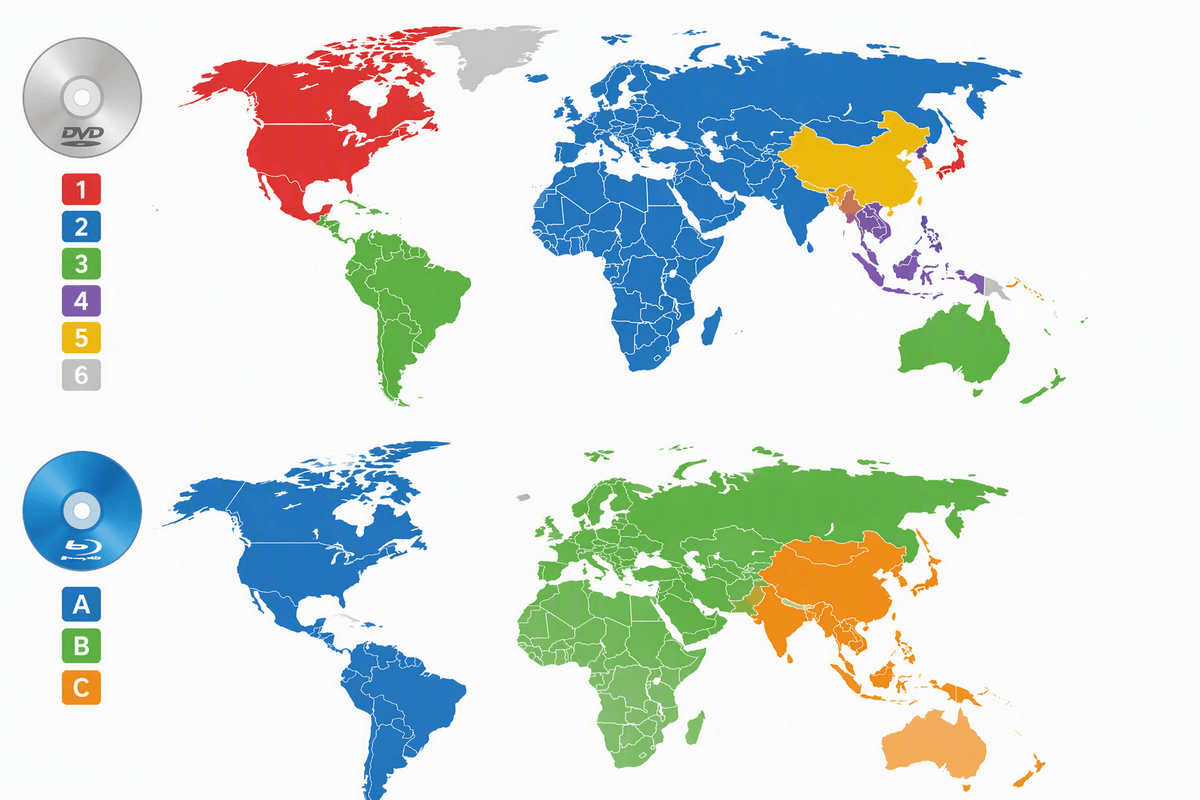
You buy a disc while traveling, bring it home, and the player rejects it even though “Blu‑ray is Blu‑ray.” That’s usually region coding. DVDs use numbered regions (Region 1 is typical in the U.S.), while Blu‑ray uses Regions A/B/C. Many players are locked to one region for each disc type, so a Region B Blu‑ray or Region 2 DVD can fail on an otherwise working player.
Copy protection is the other quiet blocker. UHD Blu‑ray and many streaming apps rely on HDCP over HDMI; if your TV, receiver, switch, capture device, or even a long/older cable can’t pass the required HDCP level, you can get a black screen or an error even when the disc is supported. Streaming features also age poorly: apps get dropped, logins break, and Wi‑Fi hardware can be slow, so a “smart” player may still be a weak streamer compared with a dedicated streaming box.
A quick compatibility checklist before you buy discs or a player
You’re usually trying to avoid one of three surprises: “won’t load,” “wrong region,” or “plays but not the way I expected.” Before you buy, confirm the exact model supports the disc type you’re holding: Blu‑ray (BD), 3D Blu‑ray, and—if it’s a 4K disc—Ultra HD Blu‑ray (not the same as “4K upscaling”). Check region support for both DVD (numbered regions) and Blu‑ray (A/B/C). If you rely on burned media, look for explicit DVD-R/+R, BD-R, and BD-RE support. For files over USB/data discs, verify file system (exFAT/NTFS) plus video/audio codec support. Finally, for UHD/HDR, confirm HDCP/HDMI and HDR formats your TV and receiver can pass.