Why homework turns into battles in the first place
Homework turns into a battle when three things collide: unclear expectations, low perceived payoff, and easy distractions. A student often sits down without a concrete “what done looks like,” so every assignment feels bigger than it is, and starting becomes the hardest step. Add a phone that delivers instant stimulation and homework starts competing with a thousand tiny rewards. Parents then step in as the external “manager,” which can trigger pushback, especially in middle and high school. Even good students get stuck when tasks require planning skills they haven’t fully built yet. Apps can help, but only if they reduce friction rather than add rules to argue about.
Forest: a simple focus timer that feels rewarding

A familiar pattern is the “I’m working” claim while tabs, texts, and snacks quietly eat the hour. Forest tackles that with a simple deal: pick a focus length (often 15–30 minutes to start), start the timer, and you “grow” a virtual tree while you stay on task. If the student leaves the app to scroll, the tree withers. It’s not deep psychology, but the feedback is immediate and easy for kids to understand, especially upper elementary and middle schoolers who respond better to small wins than lectures.
Setup is straightforward: agree on a default session length, define what counts as a break, and pair it with a short checklist (“finish five math problems” rather than “do math”). The limitation is obvious: it won’t stop distractions on a separate device, and some teens will ignore it unless they buy into the goal. Used as a shared routine instead of a punishment, it can reduce how often a parent has to “check in.”
Freedom: blocking the worst distractions without constant policing
A common homework blow-up is when a parent becomes the human “site blocker,” repeatedly telling a student to get off YouTube, games, or social apps. Freedom reduces that dynamic by blocking selected websites and apps across devices during a set window, so the rule is enforced by the schedule, not by constant reminders. It works best when you start small: block only the top two distractions, set a 45–90 minute “homework block,” and keep one or two approved options (like Google Docs or a calculator) so it doesn’t feel like the whole internet is gone.
The trade-off is that setup takes a little attention upfront—choosing blocklists, matching the schedule to after-school activities, and making sure “research” sites still work. If the block is too strict, students will look for workarounds or switch devices, so pairing it with a simple plan (“what’s first?”) matters.
myHomework Student Planner: never losing track of assignments again
A lot of homework drama starts earlier in the day: an assignment gets mentioned quickly, written down vaguely (or not at all), and shows up at 9 p.m. as a surprise. myHomework Student Planner helps by giving students one reliable place to capture what’s due, when it’s due, and what materials they’ll need. The payoff is less “I didn’t know” arguing, because the plan is visible and time-stamped.
Keep setup light. Add classes, set the school’s schedule, and enter just the next 7–10 days of assignments. Encourage a daily two-minute routine: check what’s due tomorrow, then pick one task to start first. The practical limitation is maintenance—if a student won’t enter assignments consistently (or teachers don’t post clearly), the planner becomes another forgotten app, so parents may need a brief check-in until the habit sticks.
Todoist: breaking big projects into manageable next steps
When homework fights keep repeating, it’s often because the task isn’t really “homework,” it’s a mini project: a lab report, a book report, test prep, or a multi-step worksheet. Todoist helps by turning “finish science project” into specific next actions a student can start today (choose a topic, find two sources, write the outline, draft paragraph one). That reduces the stalled feeling that leads to procrastination and last-minute panic.
Keep it simple: one project = one task with 4–8 subtasks, each small enough to finish in 15–30 minutes. Use due dates for the real deadline and reminders for the first step. The constraint is setup time—someone has to break the assignment down, especially at first—so it works best when a parent models it once or twice, then the student takes over.
Khan Academy: guided practice when the lesson didn’t stick
A lot of “refusal” at homework time is really confusion. The student is staring at a worksheet, but one missing skill (fractions, negative numbers, thesis statements) makes every problem feel like a trap, and asking a parent for help turns into a power struggle. Khan Academy is useful here because it offers short videos, step-by-step practice, and instant feedback, so the student can get unstuck without a full tutoring session. A practical way to use it is to pick the exact topic from the assignment, do 10–15 minutes of targeted practice, then return to the worksheet while the idea is fresh.
Set expectations: it’s support, not a replacement for the class. The constraint is time—if they “learn” on Khan for an hour, homework still isn’t done—so keep it bounded and treat it like a quick skill reset, not a detour.
Google Family Link: device rules that reduce nightly negotiations
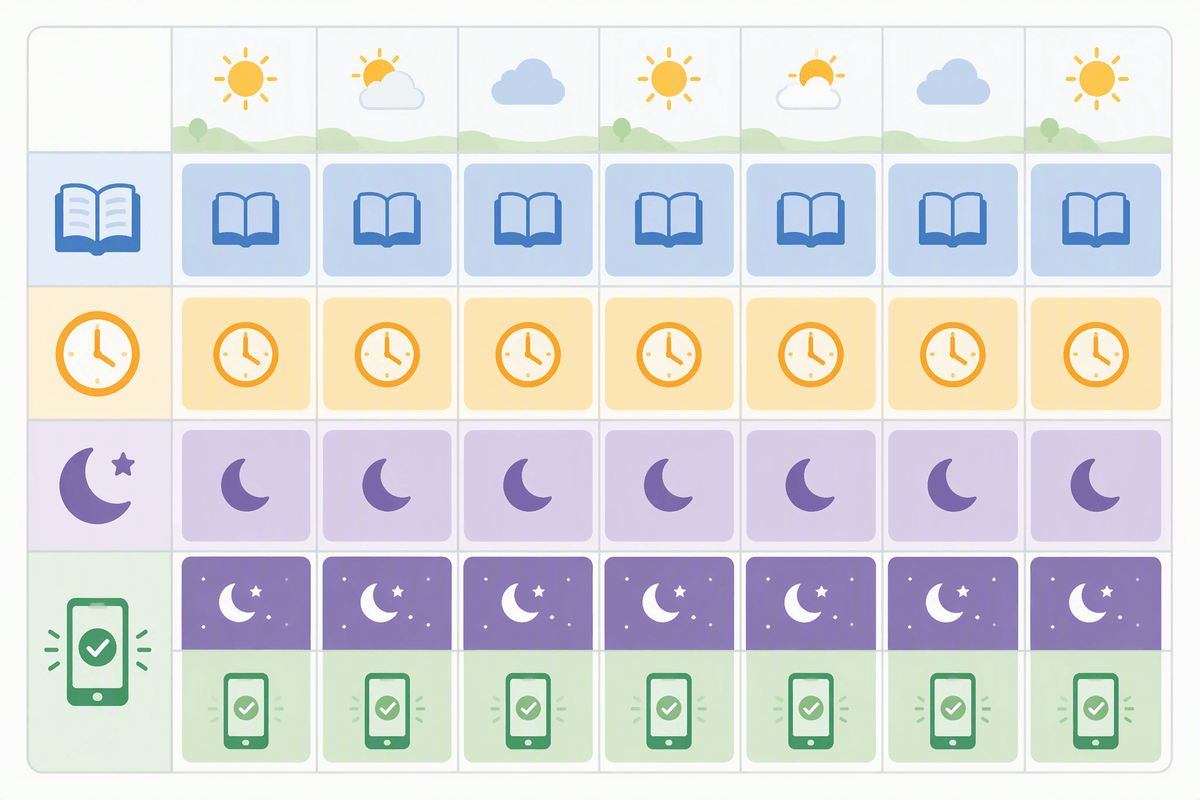
You’ve probably seen the same loop: homework starts, a notification hits, the phone disappears under the desk, and you end up negotiating “five more minutes” like it’s a contract. Google Family Link helps by turning those debates into defaults—bedtime and school-night device downtime, daily limits, and (on supported Android devices) app time limits that apply whether you’re in the room or not. Used well, it shifts the conversation from “give me your phone” to “the phone is off until 7:30.”
The setup is mostly front-loaded: link the child’s Google account, review which apps matter for school, then set a homework window and a separate wind-down window. The real limitation is friction—older teens may see it as surveillance, and iOS control is more limited than Android—so it works best when you agree on the rules together and keep overrides rare and predictable.
Putting it together: a small stack you can actually maintain
On a normal school night, the simplest “stack” is one tool for focus and one tool for clarity. Many families do well with Forest plus myHomework: start a 25-minute session, work only from what’s due next, then take a short break and repeat. If distractions are the main trigger, swap Forest for Freedom, and treat the block schedule as the default so you’re not re-arguing it daily. Add Todoist only when projects show up, and use Khan Academy as a 10–15 minute reset when confusion stalls progress. The cost is consistency: these only work when the routine is small enough to repeat.