What “temporary files” really mean on mobile devices
You’ve probably seen “temporary files,” “cache,” or “junk” in a storage menu and wondered what it really means on a phone. On mobile devices, most “temporary” space is created by apps trying to feel fast: they save thumbnails, recently viewed posts, maps, music buffers, and bits of video so they don’t have to download everything again. Your browser does the same with images and site data. None of that is usually “important” in the way photos or messages are, but it can grow quietly into gigabytes.
The trade-off is that clearing it can make apps a little slower the first time you reopen them, and some apps will sign you out or remove offline downloads. “Temporary” also doesn’t always mean “small” or “short-lived,” so it helps to treat it as reusable space—not guaranteed-to-disappear space.
A quick safety check before you start deleting
A common mistake is deleting the right things in the wrong way. Before you clear anything, confirm what’s already backed up. On Android, check Google Photos (or your photo app) to see whether “Back up” is on and complete; on iPhone/iPad, check iCloud Photos and your last iCloud backup date. If you use WhatsApp, Signal, or Telegram, open the app’s settings and confirm whether chats and media are backed up or stored only on the device.
Then do a quick scan for “can’t get it back” items: the Downloads folder, voice memos, offline maps, and files saved in apps like Notes, Files, or Drive. Clearing cache is usually safe, but deleting “data,” uninstalling apps, or removing offline downloads can cost time and logins to restore.
Android: clear cache, downloads, and app leftovers fast
If you’re on Android, the fastest wins usually come from three places: the Downloads folder, big app caches, and apps you barely use. Start in the Files app (often called “Files by Google”). Open Downloads and sort by size. Old PDFs, installers (APKs), shared photos, and videos from links tend to pile up here because nothing auto-cleans it. Delete what you recognize, then empty the trash inside the file manager if it has one—otherwise the space may not come back yet.
Then clear cache where it matters. Go to Settings > Storage to spot the largest apps, or Settings > Apps, pick an app, and use Storage & cache > Clear cache (wording varies by phone). Prefer “Clear cache,” not “Clear storage/data,” because clearing data can wipe logins, settings, and offline content. Social apps and browsers are often the biggest culprits. One limitation: some apps rebuild cache quickly, and clearing it can temporarily slow loading or re-download media on cellular data.
Finally, remove leftovers by uninstalling apps you don’t use and checking for offline downloads inside apps (Spotify, YouTube, Netflix, Maps). Those aren’t “cache,” but they can dwarf everything else.
iPhone and iPad: what you can and can’t clear
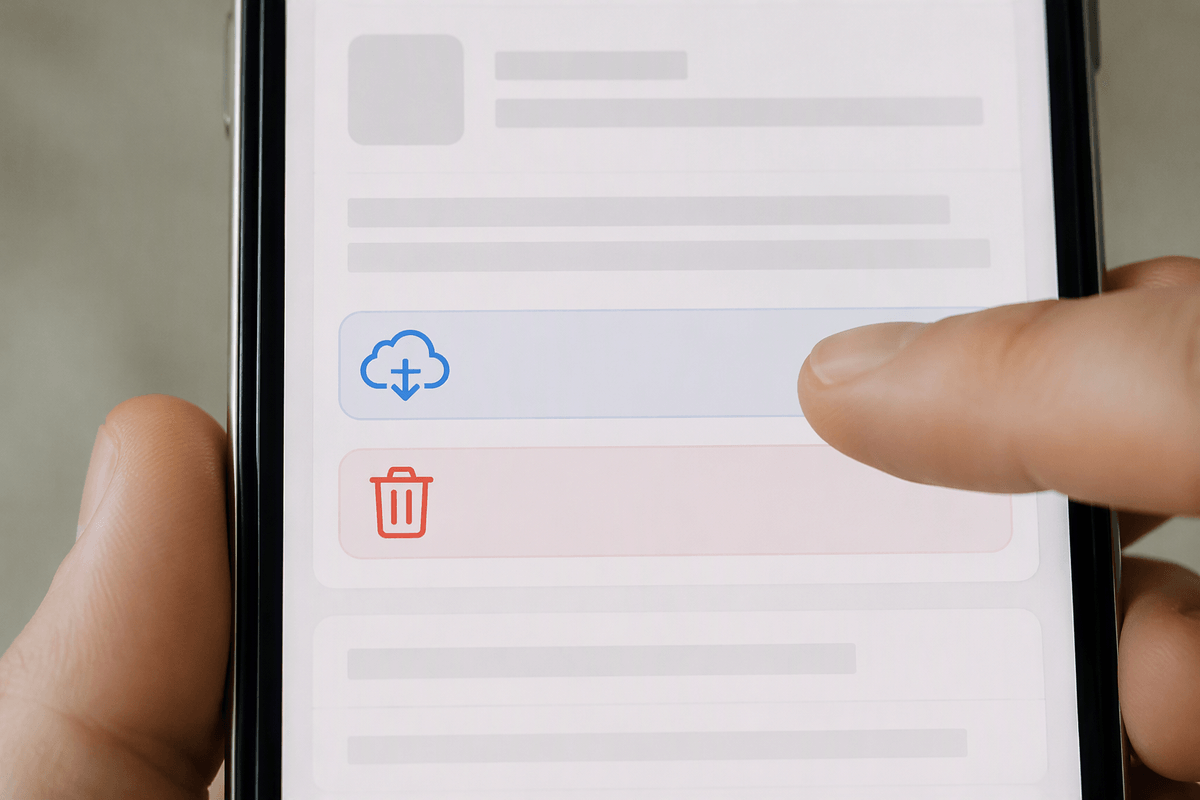
On iPhone and iPad, the confusing part is that iOS doesn’t give you a universal “clear app cache” button. For most apps, you can’t selectively wipe temporary files the way you can on Android. Instead, you free space by removing the things iOS does let you control: large attachments, offline downloads, and apps you don’t use.
Start with Settings > General > iPhone Storage (or iPad Storage) and let it load the list. Tap the biggest apps and look for two different buttons: Offload App removes the app itself but keeps documents and data (helpful when you want the app back without resetting everything), while Delete App removes the app and its data. For Safari clutter, go to Settings > Safari > Clear History and Website Data; that can log you out of sites and remove stored sessions, so expect some re-sign-ins.
Also check the built-in hoarders: in Messages, review large attachments in iPhone Storage; in streaming apps, delete downloads inside the app; and in Photos, clear Recently Deleted. One practical constraint is time and Wi‑Fi: if you remove offline media, you’ll need to re-download it later.
Browser, social, and messaging apps that quietly hoard storage
Look at your biggest “everyday” apps first, because they’re built to keep lots of media close at hand. Browsers (Chrome, Safari, Firefox) store images, site data, and long lists of tabs. If you have dozens of tabs open, close the ones you don’t need and clear website data or browsing data—just expect sign-ins to reset and some sites to load slower once.
Social apps are usually worse than people expect. Instagram, TikTok, Facebook, and X can accumulate large caches from endless scrolling, plus saved drafts and downloaded reels. On Android, clearing cache for these is usually a clean win. On iPhone/iPad, the practical workaround is deleting and reinstalling the app when it’s truly bloated, which costs time and may remove drafts or offline items.
Messaging apps quietly balloon from media. In WhatsApp/Telegram/Messenger, open storage settings and sort by “largest” chats, then delete videos and duplicates while keeping the conversation. iMessage can also swell with attachments, even if your photo library looks fine.
Built-in storage tools and cleanup habits that stick
You’ll get better results if you lean on the device’s own “what’s taking space?” view, then build one or two repeatable habits. On Android, open Settings > Storage and use the built-in cleanup suggestions (or the Files app’s “Clean” area if you have it) to target large files, duplicates, and the Downloads pile without hunting manually. On iPhone/iPad, Settings > General > iPhone Storage is your control center: review the app list, enable Offload Unused Apps if it fits your situation, and check Apple’s recommendations when they appear.
What actually sticks is a light routine: once a week, delete what you downloaded and no longer need; once a month, review your top 5 storage-hog apps and remove offline downloads you’ve finished. The constraint is time and attention—storage maintenance works best when you limit it to one small check, not an all-day purge.
If storage is still full: deeper fixes and last resorts

If you’ve cleared the obvious stuff and storage is still redlined, the problem is usually “real” data: photos/videos, huge message attachments, or a couple of apps holding gigabytes of offline media. Start by sorting your camera roll by videos and longest clips, then confirm they’re backed up before deleting. On Android, moving media to an SD card (if your phone supports it) or to a computer can free space without changing your apps. On iPhone/iPad, iCloud Photos with “Optimize iPhone Storage” can help, but it may require paying for iCloud storage and it won’t feel instant on slow Wi‑Fi.
When one app is abnormally large and you can’t trim it, uninstall/reinstall is the cleanest reset (watch for drafts, offline files, and two-factor logins). The true last resort is a full backup and factory reset—effective, but time-consuming, and mistakes during backup can cost data.
A simple cleanup checklist you can repeat anytime
When storage feels tight, run this quick checklist: (1) confirm your latest photo/cloud backup finished, (2) empty Downloads (and your file manager’s trash), (3) check your top 5 biggest apps and remove offline downloads you’ve already watched/listened to, (4) clear browser site data or browsing data, (5) in messaging apps, delete large videos from the biggest chats, (6) uninstall or offload apps you haven’t opened in months, (7) in Photos, clear Recently Deleted.
If you do only one habit, do #2 and #3 weekly. The real cost is re-downloading media later and re-signing into a few apps, so save it for Wi‑Fi and a calm 10 minutes.