Why “always listening” feels on—even when it’s waiting
You say “Hey Siri” or “Alexa” from across the room and it answers fast, so it’s easy to assume it’s recording everything. In most setups, the device is listening only for a short “wake word” pattern, then it starts recording and sending the request once it thinks it heard that phrase.
That still leaves real reasons it can feel intrusive: accidental triggers (“hey seriously” can sound close), a screen or light that suggests activity, and a history list that shows clips from mistaken wake-ups. Battery and data impact is usually small, but false activations can create real recordings, and that’s often the part people actually want to stop.
Quick checks before changing settings: device, account, and mic state
If you’ve ever turned off a wake word and it still responds, it’s usually because you changed it on the wrong device or the wrong account. Start by confirming which hardware is hearing you (your phone, a nearby speaker, a watch, or a laptop) and which account is signed in on that specific device. A family iPad on your Apple ID or an Echo on a partner’s Amazon account can keep listening even if your own phone is set the way you want.
Then check the obvious mic states before digging through menus: is the device muted (Echo has a mic-off button; laptops often have a hardware mic switch), is the assistant allowed to use the microphone in Privacy/Permissions settings, and are Bluetooth headphones acting as the active mic? These quick checks save time and prevent the common mistake of “fixing” wake-word listening by disabling the microphone entirely, which can break calls, dictation, and voice notes.
Turn off “Hey Siri” on iPhone, iPad, Apple Watch, and Mac
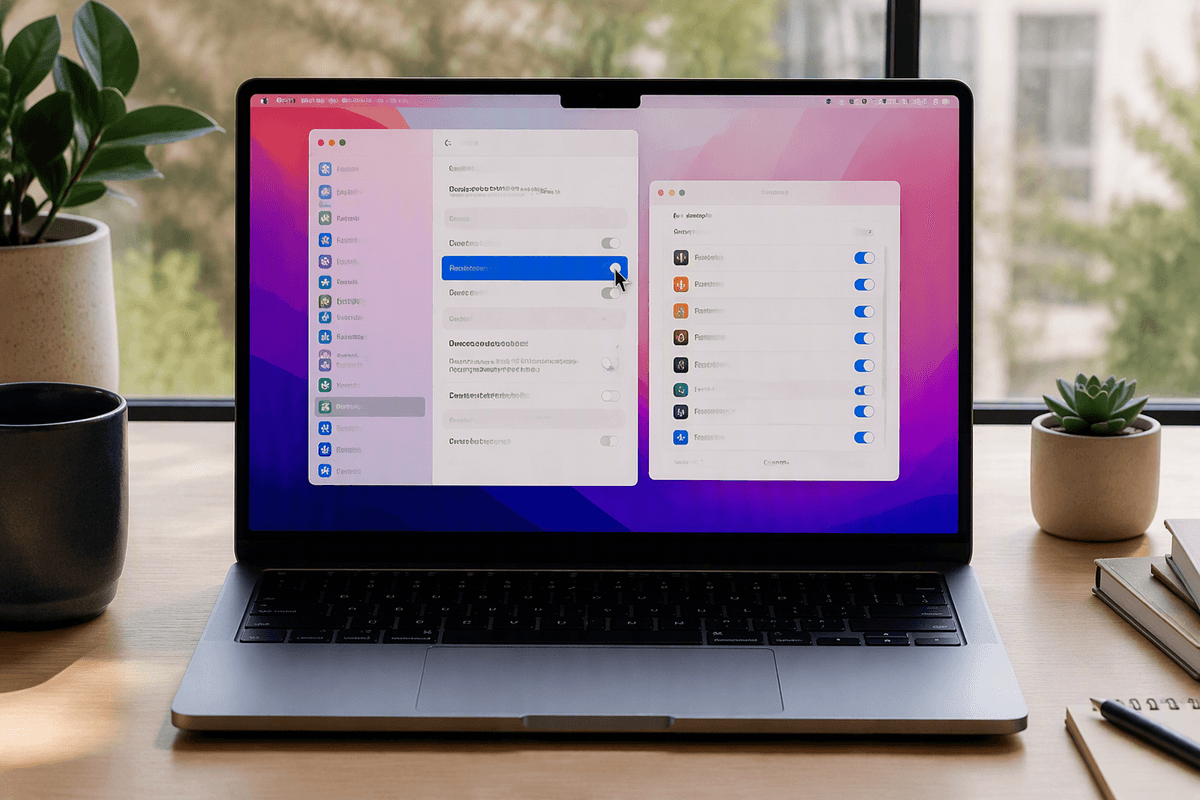
You’ll usually find “Hey Siri” (and related listening) in a few places depending on the device, so turn it off everywhere you use it. On iPhone or iPad, go to Settings > Siri (or “Siri & Search”) and switch off “Listen for ‘Hey Siri’” (or “Listen for ‘Siri’”). If you also want to prevent hands-free Siri while the phone is locked, turn off “Allow Siri When Locked”—Siri can still work when you press the Side/Home button, but it won’t be waiting in the background for a phrase.
On Apple Watch, open the Watch app on your iPhone (or Settings on the watch) > Siri and disable “Listen for ‘Hey Siri’” and, if you want, “Raise to Speak.” On a Mac, go to System Settings > Siri and turn off “Ask Siri,” then check Privacy & Security > Microphone to confirm which apps still have mic access. The trade-off is simple: hands-free stops working, but button-triggered Siri and normal mic use (calls, voice memos) can keep working.
Disable “Hey Google” on Android and Google Assistant devices
On Android, “Hey Google” is usually controlled per device, so a change on your phone won’t automatically stop a Nest speaker in the next room. On your phone, open the Google app, tap your profile picture (top right) > Settings > Google Assistant > “Hey Google & Voice Match,” then switch off “Hey Google.” Some Android versions also expose this in Settings > Google > Settings for Google apps > Search, Assistant & Voice > Google Assistant > “Hey Google & Voice Match.”
For Google Assistant speakers/displays (Nest Audio, Hub, etc.), open the Google Home app, select the device > Settings (gear) > Recognition & sharing (or Audio) and turn off “Hey Google.” If you’re in a shared home, check you’re in the right Google account before you change it. The main trade-off is convenience: you’ll still be able to use the Assistant by pressing a button (phone) or using touch controls (many Nest devices), but hands-free voice starts stop working.
Expect a small practical annoyance: some devices take a day to “feel” consistent if you have multiple phones, tablets, and speakers signed into the same home, so test each one out loud after you change the setting.
Stop Alexa wake-word listening on Echo speakers and the Alexa app
If an Echo is the device you’re trying to quiet, the fastest check is physical: press the microphone button on the top of the speaker (or on an Echo Show). The light ring should turn red, which means the microphones are off and the wake word won’t be detected. This is the most reliable option in a shared space, but it also stops features like intercom-style Drop In, calling, and voice-controlled smart-home commands until you unmute.
If you’d rather keep the mic working but stop hands-free activation, use the Alexa app. Open Alexa > Devices > Echo & Alexa, pick the specific speaker, then find its settings and turn off the wake word/voice activation option where available (or change the wake word to something less likely to trigger by accident). Also check Alexa > More > Settings > Voice Responses/Voice History to review and delete accidental recordings, since disabling the wake word doesn’t erase what was already saved.
Turn off Cortana and Windows voice activation without breaking your mic
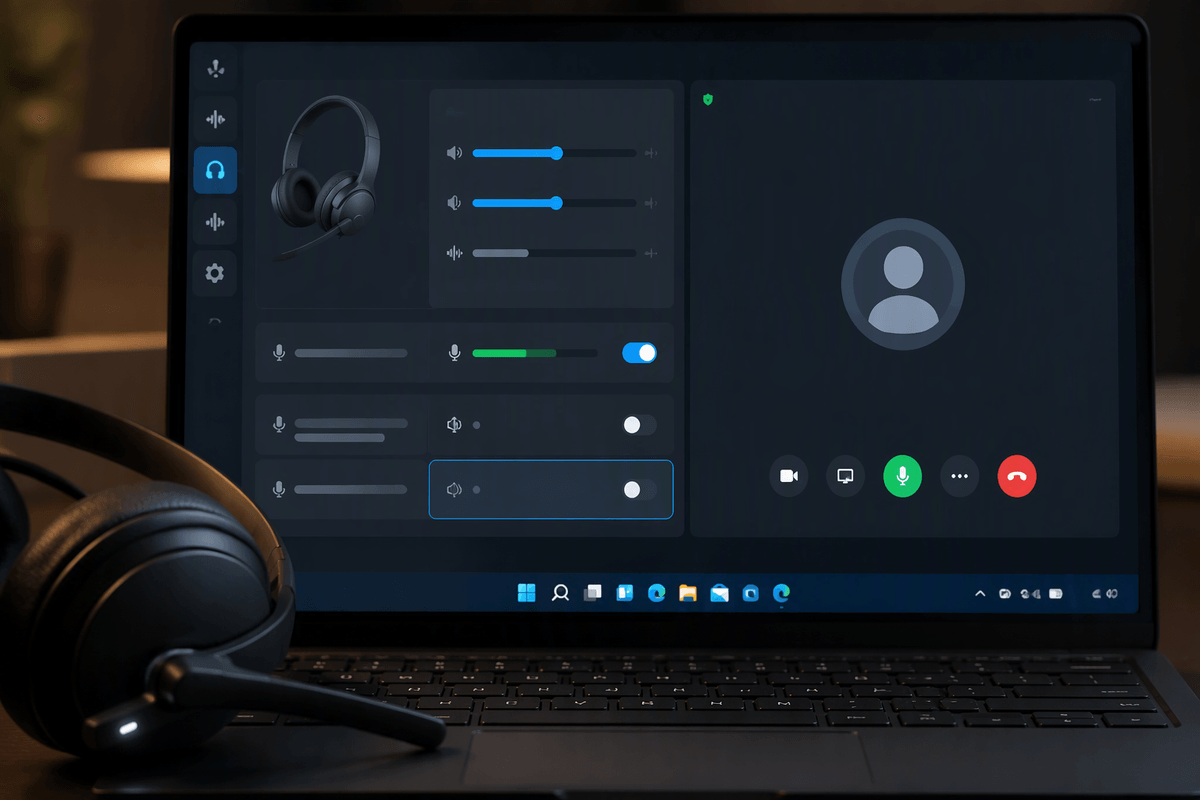
On Windows, the trick is to disable voice activation without turning off your microphone for everything else (calls, Teams/Zoom, game chat, dictation). Start in Settings > Privacy & security > Microphone and leave “Microphone access” on, but scroll down and switch off mic access for Cortana (and any other assistant-style apps you don’t use). If you see a Voice activation page (often under Settings > Privacy & security), turn off “Allow apps to use voice activation,” or at least disable it for Cortana.
If your PC still reacts to a phrase, check for vendor utilities (Dell/HP/Lenovo “voice wake,” headset software, or a “Voice Wake Up” feature) that can listen outside of Cortana. The cost is convenience: you lose hands-free launching, but your mic can still work normally in apps that keep permission. Test by saying “Hey Cortana” and then placing a normal call to confirm only wake-word listening stopped.
After you disable it: testing, accidental triggers, and what still gets saved
After you turn off wake-word listening, test in the real spot where it used to respond: lock the phone, let the screen go dark, then say the wake phrase a few times at normal volume. If it still answers, you’re usually hearing a different device (watch, tablet, nearby speaker) or a second account in the home. Also watch for “near misses” in daily speech—changing the wake word or muting a speaker in busy rooms can be more practical than fighting false triggers.
Disabling the wake word doesn’t delete what was already saved. Check each assistant’s voice/activity history, delete past clips, and review auto-delete settings if you want less retained data going forward.