What changing your Microsoft account email actually changes
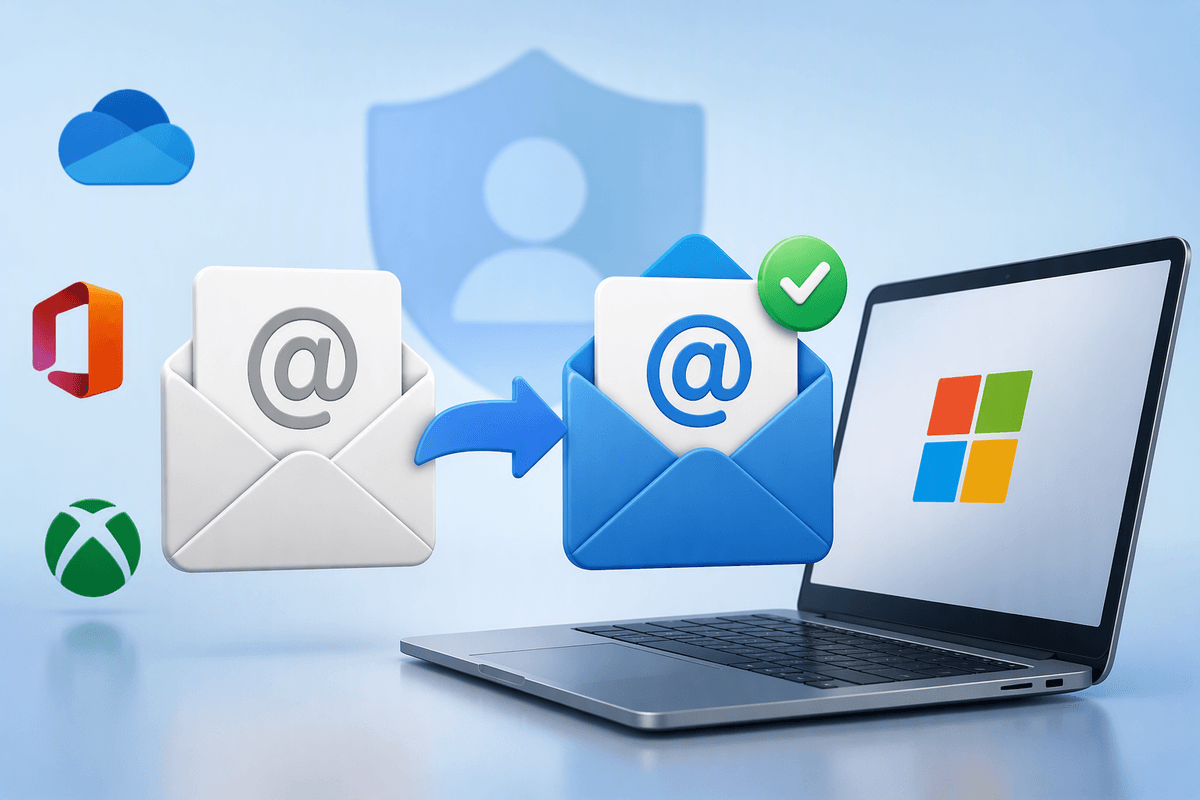
You can’t directly “edit” the email on a Microsoft account the way you might on some sites. What you actually do is add a new email address as an alias, choose it as the primary sign-in, and (optionally) remove the old one. When you switch the primary alias, your account stays the same: your purchases, Microsoft 365 subscription, OneDrive files, Xbox profile, and Windows license don’t move to a new account—they remain tied to the same Microsoft account.
What does change is what you type on the sign-in screen and what others may see in places like sharing, invites, or profile surfaces. The practical risk is getting locked out if you remove an email you still use for verification or you don’t have another recovery method set up, so the “change” is mostly about access routes, not ownership.
Before you start: aliases, security checks, and access needs
Most people start this thinking they’re “changing the email,” but Microsoft treats it as managing aliases on the same account. If your current sign-in is a Gmail/Yahoo address, you can usually add another email alias and switch the primary. If it’s an @outlook.com/@hotmail.com address, you can still add aliases, but be extra careful before removing anything, because it may also be the address you actively use for mail.
Before you touch aliases, confirm you can pass security checks. Make sure you can receive codes at a backup email or phone number, and that you know the password. If you’re doing this on a device you rarely use, have a second signed-in device handy in case you get prompted again. Also note anything tied to sign-in: Xbox consoles, Windows PCs, Microsoft 365 on phones, and any password manager entries you’ll need to update right after.
Add your new email as an alias in the account
The safest way to “change” your Microsoft account email is to add the new address first, while the old one still works. Sign in at account.microsoft.com, open the area for Your info (or Account info), and choose the option to manage how you sign in. Look for Add email, then pick whether you’re adding an existing email address (like Gmail) or creating a new Outlook.com address as an alias. For most people who already have a new email elsewhere, adding an existing address is simplest.
Microsoft will ask you to verify you control that new email. Expect a one-time code sent to the address you’re adding, and sometimes an extra security prompt to confirm it’s really you. Use an inbox you can access immediately; if the new address is on a work/school system with strict filtering, the code may be delayed or blocked. Once verification succeeds, you should see the new alias listed on the account—don’t remove anything yet, and don’t sign out until you confirm it appears correctly.
Make the new alias primary and adjust sign-in settings
You’ll now see the new email in your alias list. Choose the option to make it the primary alias, confirm the change, and stay signed in until you see it marked as “Primary.” From that point on, you can use the new address anywhere Microsoft asks you to sign in (Windows, Outlook, Xbox, Microsoft 365). Nothing “moves,” but the sign-in name you type changes, so expect some devices and apps to ask you to re-enter your password.
Before you remove the old address, review sign-in preferences. If Microsoft lets you, disable sign-in for any alias you don’t want used to log in (this keeps it available for recovery or receiving mail, while reducing confusion and unwanted login attempts). A practical constraint: security prompts may kick in when you change sign-in details, and repeated retries can temporarily slow verification, so do this when you have reliable access to your phone/email and a few uninterrupted minutes.
Remove the old email safely without breaking your access
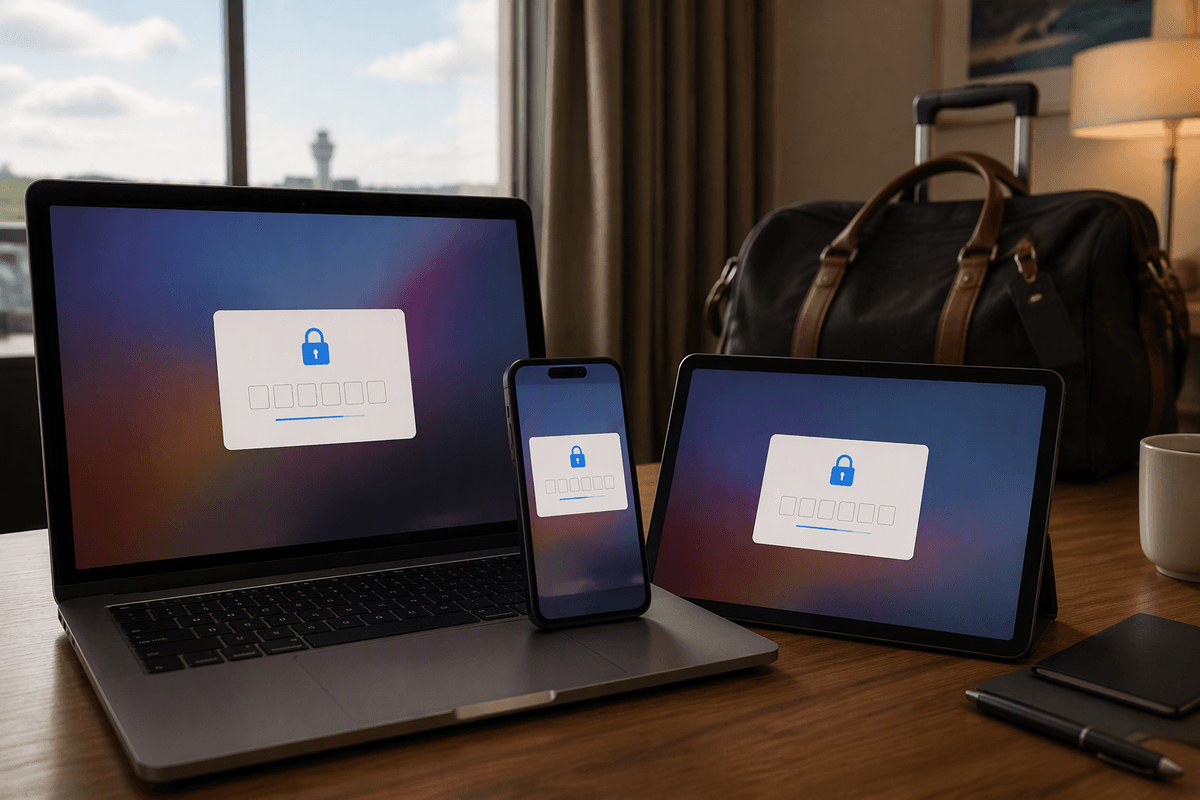
The old email is safe to remove only after you’ve proven you can get back in without it. Do a quick reality check: sign out of account.microsoft.com (or use a private/incognito window) and sign back in using the new primary alias. If that works, open Security info and confirm you have at least two recovery options that you can access right now (for example, a phone number plus a backup email). If the old email is one of your only verification methods, keep it for now.
When you’re ready, go back to the alias list and remove the old address. If it’s an Outlook/Hotmail inbox you still receive mail on, removal can also cut off that mailbox, so don’t treat it like a cosmetic change. A practical downside is timing: removing an alias can trigger extra sign-in prompts on devices you haven’t used lately, so avoid doing this right before travel or a deadline.
Update devices, apps, and subscriptions that still show the old email
You’ll usually notice the old email in places that cached your sign-in, not because the account didn’t change. On Windows PCs, open Settings > Accounts and check Email & accounts and Access work or school; apps like Store and OneDrive may need you to sign out and back in with the new primary alias. In Outlook for iOS/Android and Microsoft 365 mobile apps, remove and re-add the account if it keeps prompting for the old address. On Xbox consoles, confirm the profile is still your same Microsoft account, then update any saved sign-in entries so the new alias is what you type.
Subscriptions and billing don’t transfer, but older receipts, profile pages, and third-party services may still display the old email. Update the email on file anywhere you used “Sign in with Microsoft” (streaming, games, forums) if it’s shown as your contact address. Expect a bit of friction: some devices won’t refresh until you reboot, and you may hit extra verification checks if you try to re-sign-in everywhere in one sitting.
Special situations: Outlook inboxes, Xbox, and work or school accounts

If your old sign-in is an @outlook.com/@hotmail.com address you actually use for email, treat alias changes carefully. Making a different alias primary won’t automatically move mail to a new inbox, and removing that Outlook/Hotmail alias can also shut off delivery to that mailbox. If you still need the inbox, keep the address as an alias and simply turn off its ability to sign in (when the option is available), so you reduce confusion without losing mail.
On Xbox, the “account” is your profile. Changing the primary alias doesn’t create a new gamertag or move purchases, but consoles and older sign-in prompts may keep showing the old email until you sign out of the profile and sign back in. Plan for a re-auth step on each console, especially if you use family settings or remote installs—those often trigger extra verification.
Work or school accounts (Entra ID/Azure AD) are different. If your Microsoft sign-in is managed by an employer or school, you usually can’t add personal aliases or change the sign-in name yourself. The fix is typically an IT request, and changing your personal Microsoft account won’t affect access to that organization-managed account.
Quick troubleshooting if verification or sign-in goes wrong
If a verification code never arrives, wait a few minutes, check Spam/Junk, then resend once (repeated clicks can trigger temporary throttling). If you added a work/school email, their filters may block Microsoft codes; use a personal inbox instead. If you’re suddenly asked to “help us protect your account,” complete the prompt and avoid switching devices mid-process.
If sign-in fails after making the new alias primary, try signing in with either alias plus the same password (it’s still one account). Use an incognito window, turn off ad blockers, and confirm the new alias shows as “Primary” at account.microsoft.com. If you removed the old alias too early, recovery can take days and may require account recovery steps, so keep at least two working security methods before trying again.