When File Explorer search breaks, what it usually looks like
You usually notice File Explorer search is broken when a file you know exists won’t show up, even if you type the exact name. Sometimes the search box accepts text, but results stay empty, clearly outdated, or missing obvious matches like recent downloads. Another common pattern is the search banner sitting on “Working on it…” for a long time, with File Explorer feeling sluggish while it tries. In other cases, the cursor won’t appear in the search box, typing lags, or search stops responding after you click into a folder with lots of files. These symptoms often point to indexing, a stuck process, or a service problem.
Rule out the simplest causes before changing settings
A lot of “broken search” reports come down to something simple: you’re searching the wrong place or File Explorer is still loading a busy folder. Click into the folder where the file should be, then run the search again and watch the search scope (This PC vs the current folder). If you’re looking in Downloads, OneDrive, or a network drive, give it a moment to finish syncing or connecting before judging results.
Also check the basics that can quietly block matches: clear any filters (Date, Kind, Size), and confirm you’re not sorting into a view that hides items. If you’re searching for text inside documents, try the exact filename first—content search depends on indexing and can be slower. Finally, try searching a different folder; if it works elsewhere, the problem is likely limited to one location.
Restart File Explorer and the Windows Search UI process
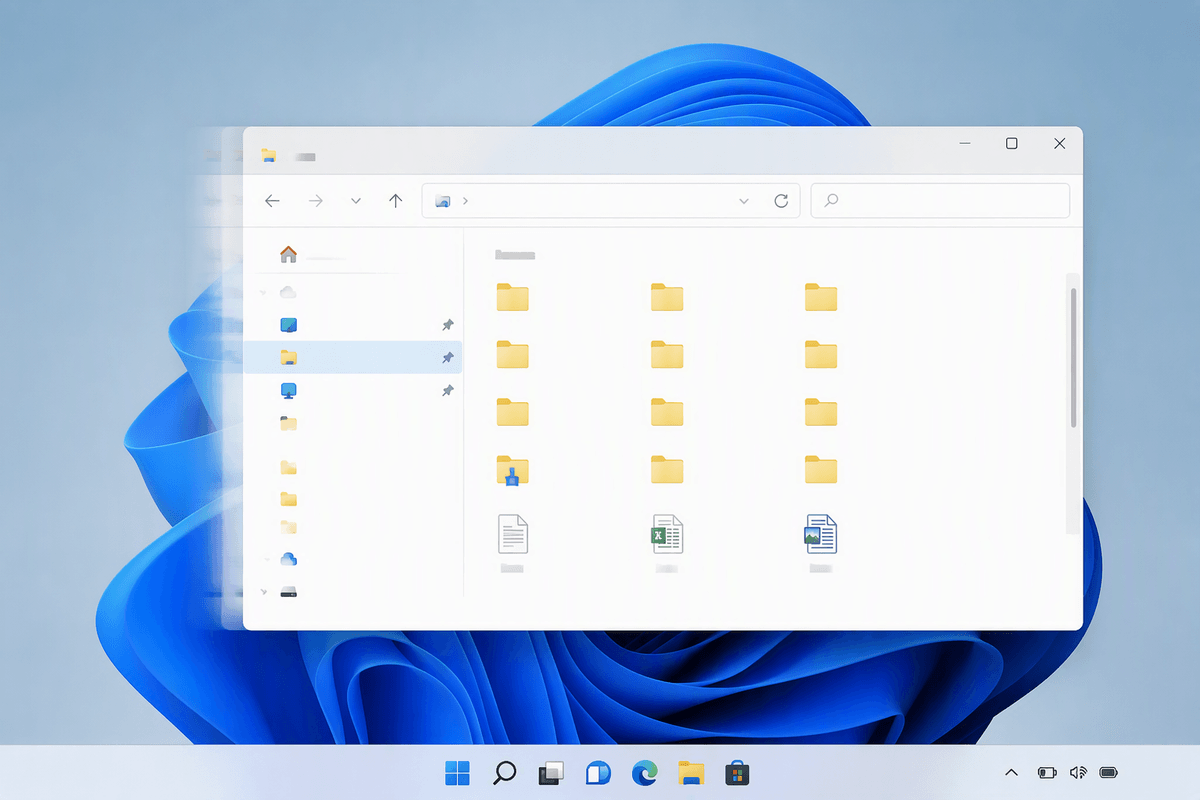
If the scope and filters look right but search still hangs, restart the pieces that commonly get stuck. Right-click an empty spot on the taskbar and open Task Manager. On the Processes tab, find “Windows Explorer,” select it, and choose Restart. Your taskbar and open File Explorer windows may briefly disappear and come back—this is normal—and it often clears “Working on it…” loops.
If typing in the search box lags or nothing happens when you press Enter, restart the search UI too. In Task Manager, look for “Search” or “SearchHost.exe” (sometimes shown as “SearchHost” or “Windows Search”), select it, and choose End task; Windows will automatically start it again within a few seconds. Then open a fresh File Explorer window and test search in a small folder first. If the issue returns every reboot, keep going—this points past a one-time freeze.
Check that the Windows Search service is running properly
Sometimes the problem isn’t File Explorer at all—the Windows Search service in the background has stopped or is stuck. Press Windows+R, type services.msc, and press Enter. Find Windows Search. Its Status should be Running and Startup type should usually be Automatic (Delayed Start). If it’s not running, right-click it and choose Start. If it is running but search is still frozen, choose Restart.
If Start/Restart fails or you get an error, note the message and try rebooting once before changing anything else. Service issues can also come from aggressive “PC cleaner” tools or corporate policies, so you may need admin access or IT help to change the startup type.
Let Windows diagnose indexing issues with the built-in troubleshooter
If the service is running but results are still incomplete or stuck, let Windows run its own Search and Indexing troubleshooter. Go to Settings > System > Troubleshoot > Other troubleshooters, then run Search and Indexing. When it asks what’s wrong, pick the closest match (like “Files don’t appear in search results” or “Search is slow”) and let it apply fixes.
The tool can reset parts of the search experience, check common indexing settings, and nudge stuck components back into a sane state without you digging through menus. It isn’t magic: it may ask for admin permission, and it can’t fix a disconnected network drive or files that haven’t finished syncing yet. When it’s done, reopen File Explorer and test a simple filename search in a known folder.
Confirm what locations and file types Windows is indexing
You can waste a lot of time “fixing search” when Windows simply isn’t indexing the place you’re searching. Go to Settings > Privacy & security > Searching Windows. Under Find my files, choose Enhanced if you regularly search outside your user folders (Documents, Pictures, Desktop). Then look at Excluded folders and remove anything important that was accidentally excluded (Downloads is a common one).
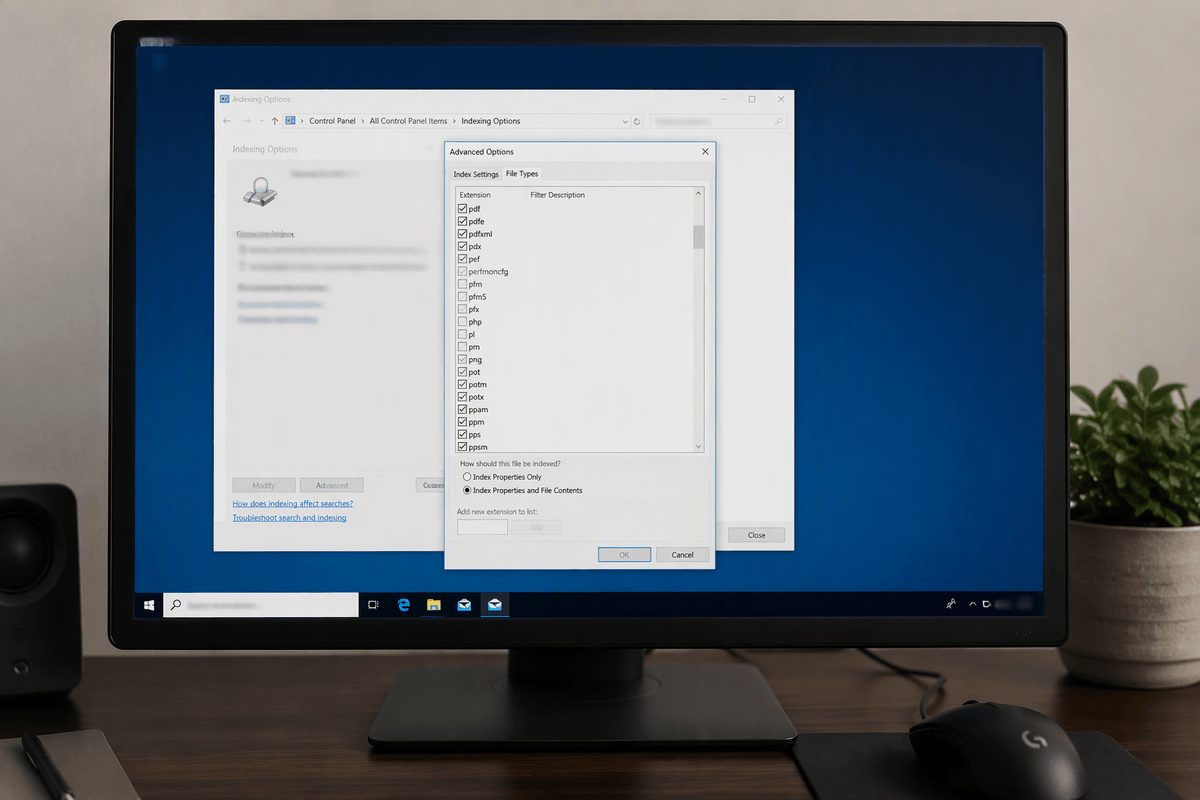
For file types and inside-document text, open Control Panel > Indexing Options > Advanced > File Types. Make sure the extensions you care about (PDF, DOCX, XLSX, etc.) are checked, and decide whether you need Index Properties Only (faster) or Index Properties and File Contents (better for searching text, but slower and heavier). Network locations and some cloud folders may not index fully unless they’re set to be available offline.
Rebuild the index when results are outdated or incomplete
If search finds some files but misses recent ones, or results look “stale,” the index itself may be corrupted or behind. Open Control Panel > Indexing Options. First, check the line that shows how many items are indexed; if it’s climbing, Windows is still catching up, so wait a bit and test again. If it seems stuck or wrong, click Advanced (admin permission may be required), then under Troubleshooting choose Rebuild.
Rebuilding can take from minutes to hours depending on how many files you have and how fast your PC’s drive is. During the rebuild, searches may be slower and incomplete, and laptop fans may run more. Leave the PC on and plugged in if possible, then retest by searching for a file you created or downloaded today.
Repair Windows components and update when nothing else works
If everything above checks out and search still won’t behave, assume Windows components are damaged or a recent update left things unstable. Open Terminal (Admin) and run sfc /scannow; if it reports problems it couldn’t fix, run DISM /Online /Cleanup-Image /RestoreHealth, then reboot and test File Explorer search again. These scans can take a while and need a stable internet connection for DISM.
After that, go to Settings > Windows Update and install pending updates, then restart. If search broke right after an update, use Update history > Uninstall updates to roll back the most recent one, or involve IT if your PC is managed.