What an ICS file is (and what it isn’t)
You’ve probably seen an .ics file arrive as an email attachment or a download link for a meeting, class schedule, sports season, or school calendar. An ICS file is a simple “calendar data” file (iCalendar format) that describes events: dates, start/end times, locations, notes, and sometimes repeating rules and reminders. It isn’t a calendar app, and it isn’t the same thing as a shared calendar that stays updated automatically.
When you open an .ics file, your device usually hands it to your calendar app to add the event(s). Depending on how it was made, it may contain one event or hundreds. It also doesn’t guarantee perfection: time zones can be missing, some reminders don’t transfer between apps, and importing the same file twice often creates duplicates.
Import vs subscribe: are you adding once or staying synced?
A practical choice comes up right away: do you want a one-time copy of those events, or do you want them to keep updating? Importing an .ics file usually means “add what’s in this file right now” to a specific calendar in your account. If the organizer later changes times, adds games, or cancels a class, your imported copy often won’t update automatically—you’d have to import a new file (and risk duplicates if you don’t clean up first).
Subscribing means you’re following a calendar feed, so changes can flow into your calendar over time. The trade-off is control: subscriptions may refresh on a delay, can disappear if the link breaks, and some apps limit editing subscribed events because they’re meant to mirror the source.
Before you start: check the file, timezone, and duplicates
You’ll save time by doing a quick “sanity check” before importing. First, confirm what you actually have: a single .ics file you can download and keep, or a subscription link (often a long URL). If you can, open the file in a text editor and look for obvious clues like the event title, date range, and a timezone line (often “TZID”). If there’s no timezone, the events may land in your device’s default zone and shift later when you travel or when daylight saving time changes.
Also decide where the events should live. Importing into the wrong calendar (work vs personal, “Family” vs “School”) is the easiest way to lose track or create doubles across devices. If you’ve previously imported anything similar, search your calendar for one distinctive event name first—importing the same file twice usually creates duplicates, and cleaning that up can be tedious.
Import ICS into Google Calendar without losing track
If you’re using Google Calendar, do the import from a computer browser when possible. In Google Calendar, click the gear icon, choose Settings, then open Import & export. Pick the .ics file, then choose the destination calendar carefully (for example, “School” instead of your main calendar) so you can hide it, share it, or delete it later without affecting everything else.
After the import, spot-check a few items before you move on: open one event and confirm the time zone, the recurrence pattern (weekly classes, every other Tuesday, season schedule), and whether any reminders came through. If something looks off, don’t re-import immediately—fixing duplicates later is the usual cost of “just trying again.” Instead, delete the imported batch (by removing that calendar or deleting the events) and re-import once after correcting the file or your time zone settings.
Import ICS into Apple Calendar on Mac and iPhone
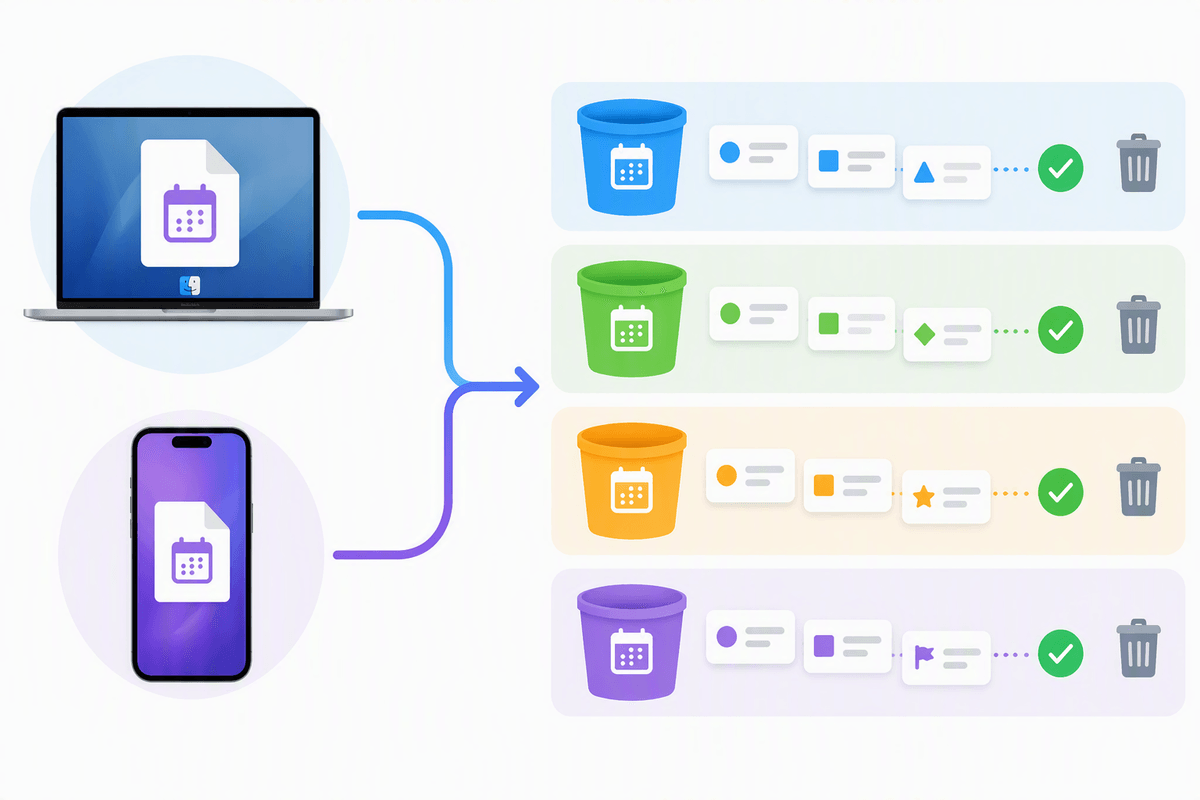
On a Mac, importing is easiest in the Calendar app. Double-click the .ics file (or drag it into Calendar), then when you’re asked where to add it, choose the correct calendar list—like “School” or “Family”—instead of your default. That one choice makes cleanup simple later if something is wrong. Once it appears, open a couple of events and confirm the time, the time zone line (especially if you travel), and any repeats like “every weekday” or “every 2 weeks.”
On iPhone and iPad, .ics files usually arrive via Mail, Messages, or Files. Tap the attachment, then tap Add All (or add individual events) and pick the right calendar if prompted. A practical limitation: iOS doesn’t give you the same “bulk control” as a Mac, so if you accidentally add duplicates, fixing it can mean deleting lots of events one by one unless they all landed in a dedicated calendar you can remove.
Import ICS into Outlook: desktop, web, and Exchange quirks
Outlook can be straightforward or surprisingly picky, depending on which version you’re using and whether your mailbox is on Exchange/Microsoft 365. In classic Outlook for Windows, use File > Open & Export > Import/Export, then choose “Import an iCalendar (.ics) or vCalendar file,” and confirm which calendar it goes into. If Outlook asks whether to Open or Import, “Import” usually makes a copy; “Open” can create a separate calendar view that’s easier to remove later.
On Outlook on the web, you typically import from the Calendar page (look for Add calendar > Upload from file). A common quirk in work accounts: you may be blocked from importing into shared calendars or room/resource calendars due to admin policy. After importing, spot-check a recurring item and one event near a daylight-saving change—Outlook is more likely to reveal timezone issues there than on a normal week.
When imports go wrong: shifted times, missing events, duplicates
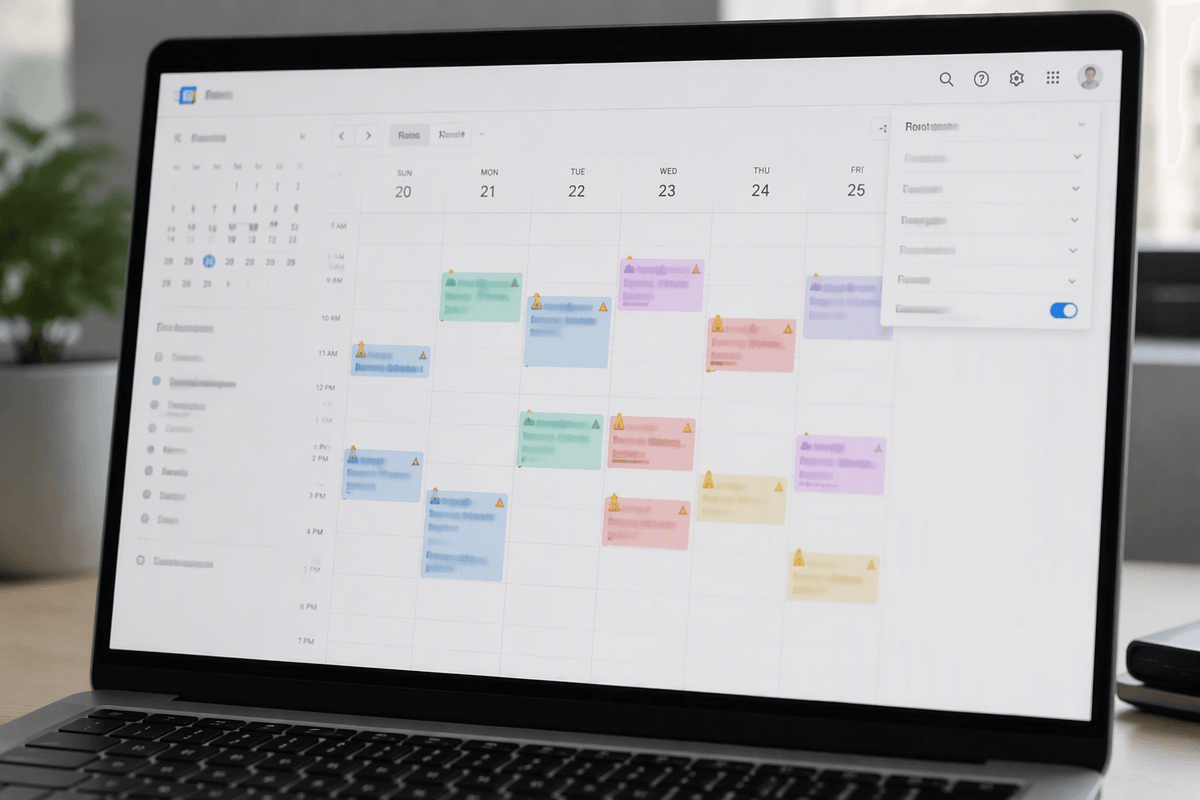
You notice problems fastest when you open one imported event and look for the “time zone” or “ends at” details. If everything is shifted by a fixed amount (like 1–3 hours), the file likely had no timezone, or your calendar app interpreted it in a different zone than the organizer intended. The safest fix is to delete the imported batch (or remove the dedicated calendar you imported into), correct your device/account timezone settings, then import once more—re-importing repeatedly is how duplicates pile up.
Missing events usually come from repeating rules that didn’t translate cleanly (common with “every other week,” exceptions, or long schedules). Compare the first and last dates in the original source (email, syllabus, website) to what landed in your calendar. Duplicates are easiest to fix when you imported into a separate calendar you can toggle off or delete; if everything went into your main calendar, cleanup can be time-consuming and sometimes needs desktop tools or search-and-delete in batches.
A quick checklist to choose the right import method
You’re usually choosing between “I want these dates in my calendar” and “I want this schedule to keep updating.” If the sender is a person inviting you to one meeting, open the .ics and add it (or accept the invite) and you’re done. If it’s a season schedule, school calendar, or anything likely to change, look for a subscribe link and use subscription instead of importing a file. When you do import, pick a dedicated calendar (“School,” “Team,” “Travel”) so you can hide or delete it later. Always spot-check: one recurring event, one reminder, and one event near a daylight-saving change.